
Overview
Create a lead card to track the buyer’s journey. You can enter an existing customer or add a new one.
1. Open Deals
1) Click the Deals icon.

You’ll see columns (stages) with deal cards.
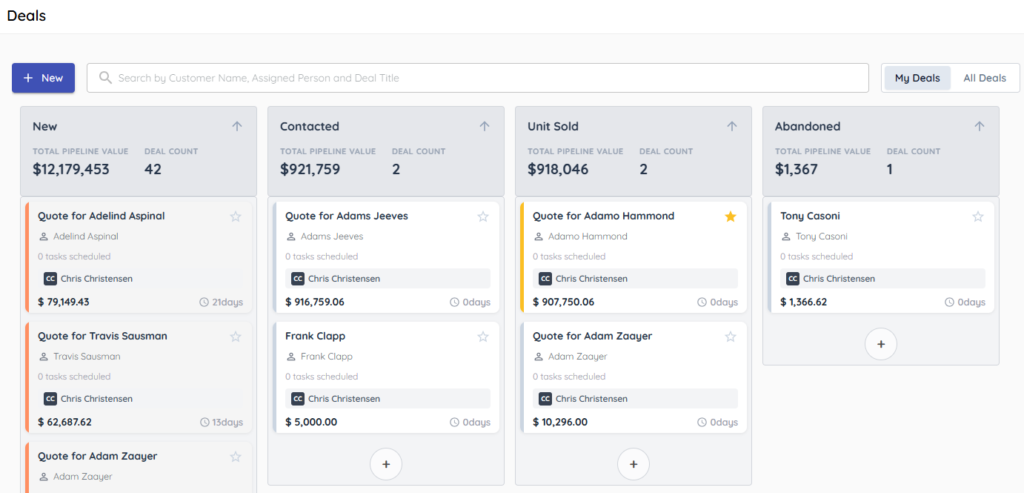
This shows your active pipeline.
2. Start a deal
1) Click the New (+) button.

You’ll see the New Deal drawer on the right.
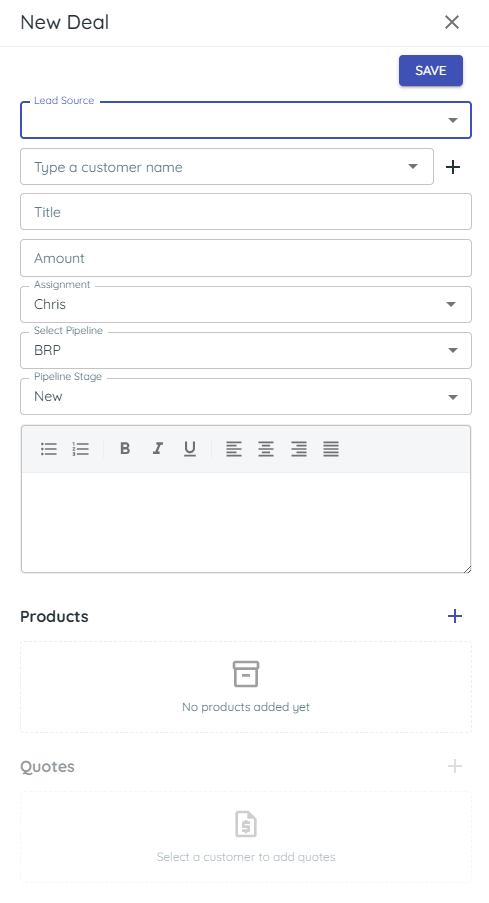
This is where you enter basics.
3. Select a lead source
1) Choose Lead Source (e.g., In store, Phone, Web, Text, Event).
You’ll see the selected source on the deal.
This helps you track where leads originate.
4. Add the customer
1) Search for Customer Name or click + to add a new customer.
You’ll see details autofill (or a new customer form).
This connects the deal to the right record.
5. Add notes (discovery)
1) Enter the initial Description of needs and use case.
You’ll see your notes on the deal.
This captures what matters for follow-up.
6. Name and amount
1) Set Title and optional Amount.
You’ll see the title in bold and a value.
Clear titles and amounts improve visibility.
7. Pick pipeline, assignee, and stage
1) Choose Pipeline, Assignment, and starting Pipeline Stage.
8. Attach related products and quotes
1) Products can be selected from your inventory, or added manually.
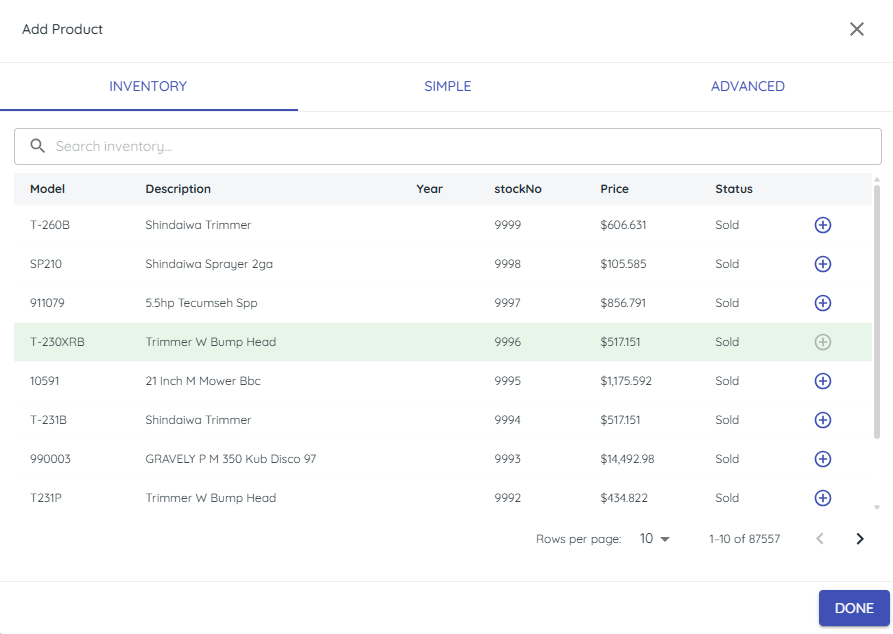
Note that this does not change the status of your inventory.
2) Quotes can be uploaded as PDFs, or attached from your DMS.
You’ll see the deal placed and assigned.
This routes the work to the right person and step.
> Tip: You can edit any field later; save now to capture the lead quickly.
Related KB articles
– Organize your deals pipeline
– Search and filter the deals pipeline