
Overview
See, edit, complete, and bulk‑update tasks across your team.
1. Open Tasks
1) Click the Tasks icon (clipboard).

You’ll see To Do items with due dates, customers, and deal links.
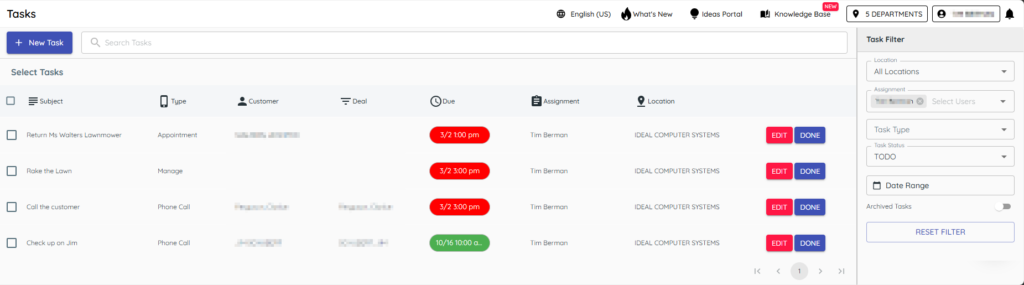
This is your action list.
2. Edit or reschedule
1) Open a task and update fields or due time.
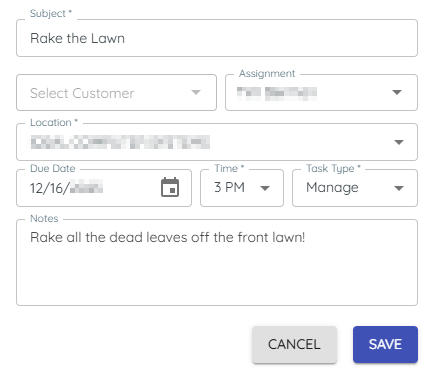
You’ll see changes saved on the task.
Adjustments keep work realistic.
3. Complete a task
1) Click Done and choose an Outcome; optionally add a follow‑up task.
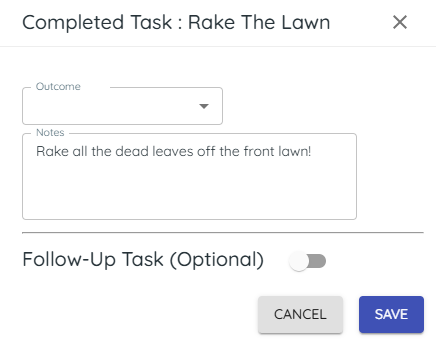
You’ll see the task closed and notes on the deal timeline.
Outcomes document what happened.
4. Bulk actions
1) Select multiple tasks with checkboxes.
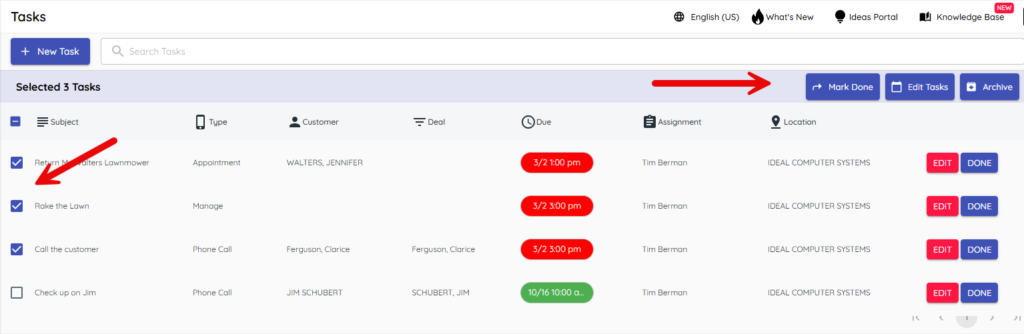
You’ll see options to Mark as done, Edit, or Archive.
Bulk saves you time on busy days.
5. Task filters
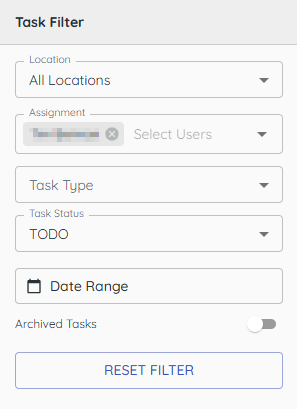
1) Use Filters to choose location, assignees, type, and status.
Default Filters will only show you tasks assigned to your user ID.
You’ll see a tailored task list.
> Tip: Completed tasks remain searchable for audit and reference.
Related KB articles