
Overview
Define stages, aging alerts, and naming. Secure access by department.
1. Open Deal settings
1) Go to Settings > Deals.
You’ll see Pipeline Names, stages, and options.
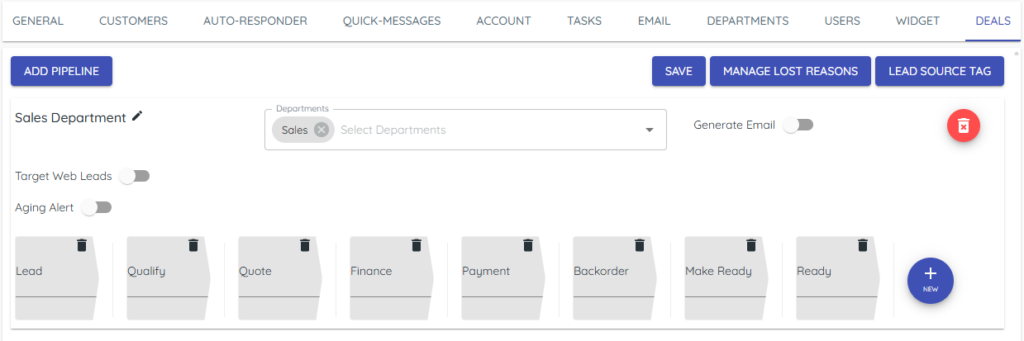
This is where you shape your process.
2. Add or edit stages
1) Create the stages that match your sales steps.

You’ll see columns update in Deals.
Clear stages guide consistent work.
3. Set aging alerts
1) Choose Aging Alert or turn off.
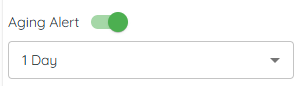
You’ll see red highlights on inactive deals.
Aging prompts outreach before interest fades.
4. Manage lost reasons and lead sources
1) Add Lost Reasons and Lead Source Tags your team uses.

You’ll see these values available on deals.
Clean lists improve analytics.
5. Control access by department
1) Assign Departments to each pipeline.

You’ll see only authorized users access that pipeline.
Department access governs who can see and edit.
Related KB articles
– Organize your deals pipeline