
Overview
Set the title, type (SMS, MMS, or Email), and location. Then write, test, and send.
1. Start a broadcast
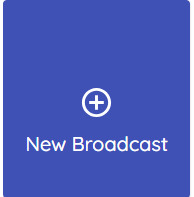
1) Navigate to the Broadcasts screen, Click New Broadcast.
You’ll see a drawer open with title, type, and location.
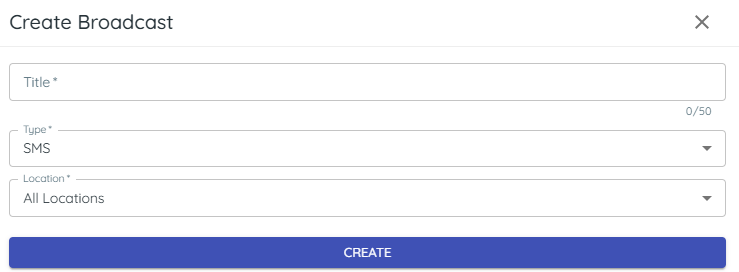
This sets the basics before you edit content.
2. Enter a title
1) Type a descriptive Title (e.g., “Labor Day — 2025).
You’ll see the title at the top of the editor.
Clear titles help you find drafts later.
3. Choose a type
1) Select SMS, MMS, or Email.
You’ll see SMS (text message, up to 160 characters), MMS (text message up to 1500 characters + attachments), or Email options.
Pick the channel that fits your message.
4. Select location(s)
1) Choose the sending store(s).
You’ll see a location dropdown.
This targets the right customers if you have multiple stores.
5. Create the broadcast
1) Click Create.
You’ll see the broadcast editor with title and body fields.
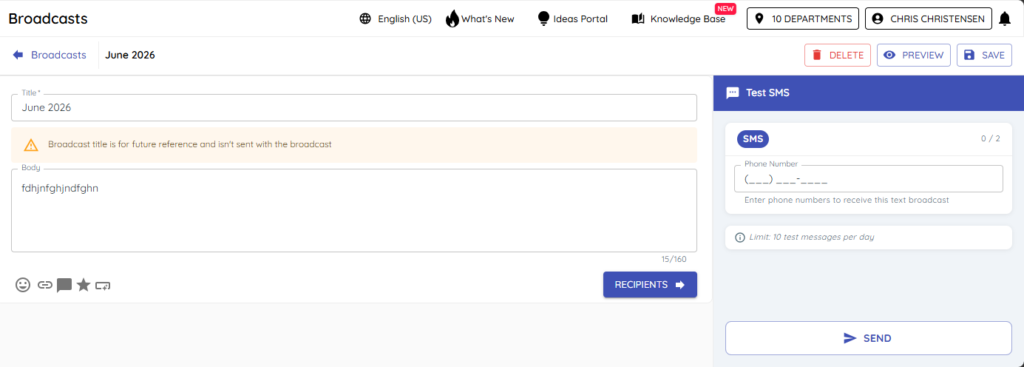
You’re ready to write and test.
Tips to Work Faster
– Use MMS for images or flyers; use Email for long-form content.
Related KB articles
– Write and test your SMS/MMS Broadcast
– Add links, emojis, merge tags, and templates to a broadcast