
Overview
Add your review links into a broadcast using the star button.
1. Open review links
1) Click the star button in the editor.

You’ll see options for Google and Facebook links.
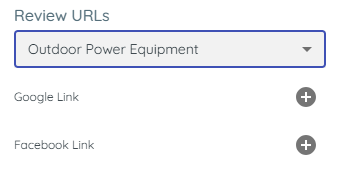
This makes it easy to include your review pages.
2. Select the correct store
1) Choose the store name if you have multiple locations.
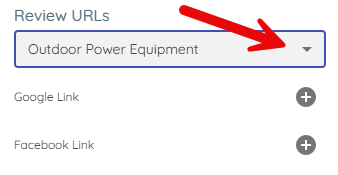
This ensures reviews land on the right page.
3. Insert the link
1) Click the plus sign to insert the desired link.
You’ll see the link added to Body.
Customers can tap through to leave a review.
Tips to Work Faster
– Insert review links only when appropriate for your audience.
Related KB articles
– Add links, emojis, merge tags, and templates to a broadcast
– Create a new broadcast (SMS, MMS, Email)