
Overview
Pick the right audience using Customer Groups. Counts reflect who can actually receive the message.
1. Open Recipients
1) Once you have finished composing your broadcast, Click the Recipients arrow button.
You’ll see the Select Customer Groups screen.
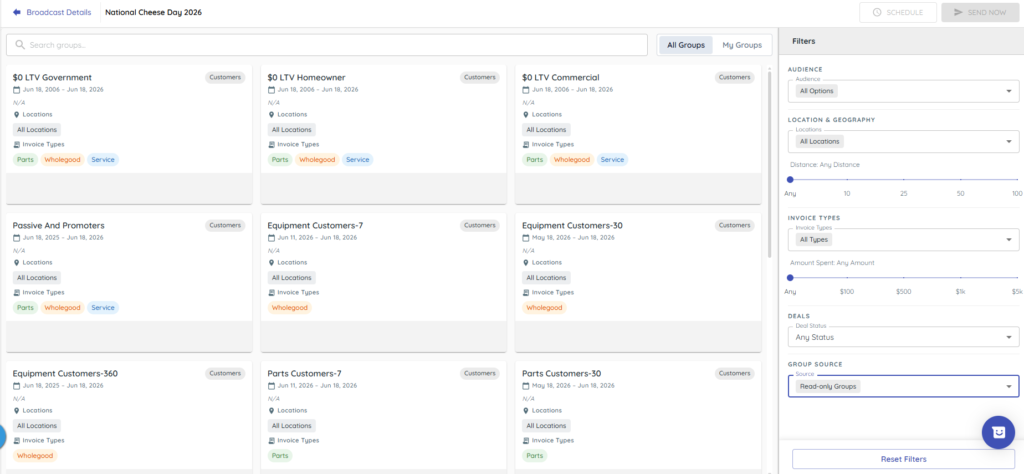
This is where you choose who gets the message.
2. Select one or more groups
1) Check the boxes for the groups you want.
You’ll see a running total of recipients.
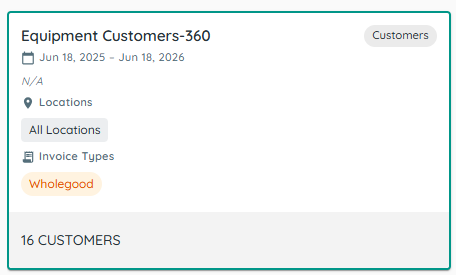
Selecting multiple groups won’t duplicate messages to the same customer.
3. Understand the count
1) Review the total shown.
You’ll see only customers with a cell phone number counted for SMS/MMS. Cooldowns from oversending controls also reduce the count.
This ensures a realistic send size.
4. Send or schedule
1) Click Send Now or Schedule.

You’ll see confirmation of the action.
Scheduling uses whoever is in those groups on the scheduled date.
Tips to Work Faster
– Use scheduling to plan ahead and avoid peak send windows.
Related KB articles
– Customer Groups overview and read-only groups
– Build customer groups with filters