
Overview
Mark buying status with Customer Status and add custom Customer tags for flexible targeting.
1. Set Customer Status on a customer
1) Open a customer record and use the Customer Status dropdown.
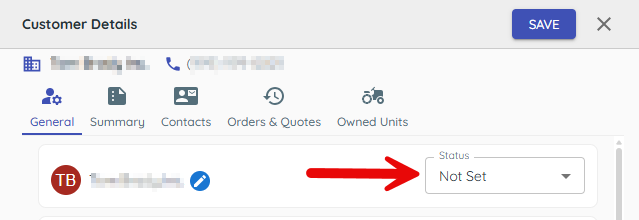
You’ll see options like Prospect, Active, In-Active, and Lost.
Customer Status helps you target buyers at specific steps.
2. Add Customer tags
1) In Tags, at the bottom of the customer record, click + and select from your available tag categories and names.
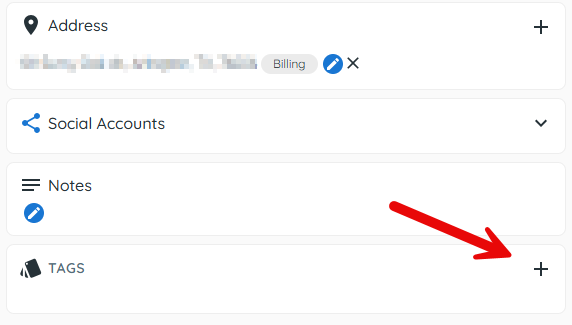
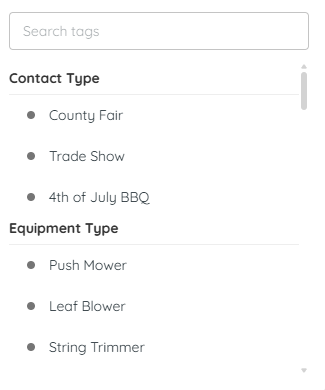
You’ll see tags added to the customer record.
Tags are flexible and searchable for campaigns.
3. Create tag categories and tags
Before you can use tags, you must create them.
1) Go to Settings > Tags.
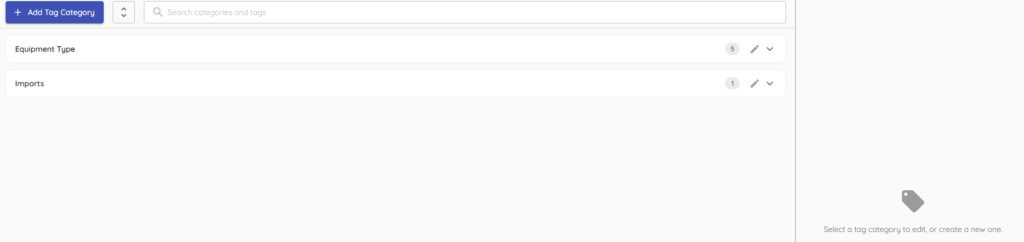
You can create up to 50 categories with up to 99 tags each.
You cannot apply a category to a customer record. You need to create a category, and then create a tag inside that category.
This standardizes tagging across all staff.
Tips to Work Faster
– Update Sales stage as customers progress so groups stay accurate.
Related KB articles
– Build customer groups with filters
– Apply Customer Status and Customer tags to a Customer Record