
Overview
Use Messenger to text customers one-on-one and keep every conversation in one place.

1. Open a conversation
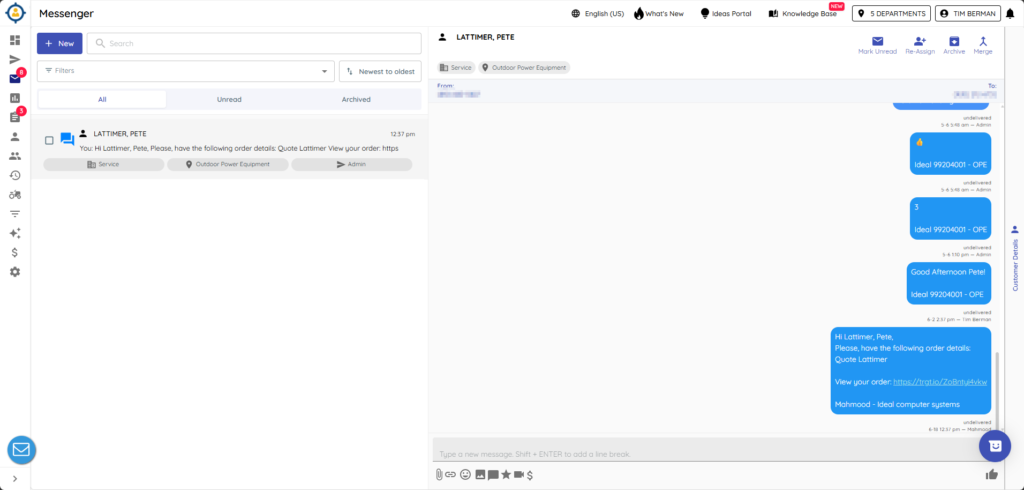
1) Click Messenger on the left and select a customer on the left list.
You’ll see the full message thread on the right.
This keeps history together for your team.
2. Send a message
1) Type your Message in the box and press Enter.
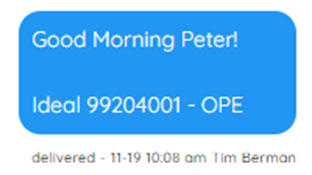
You’ll see the text with a delivered time and the username who sent it.
Delivered stamps help you track timing and ownership.
3. See who’s assigned
1) Check the third bubble on the conversation row.
You’ll see the user’s name after someone from your store replies.
This shows who’s currently helping the customer.

> Tip: Each message includes your store’s signature by default. You can personalize your signature in your user profile if desired.
Related KB articles
– Quick messages and opt-out rules