
Overview
Use templates for common replies, and honor legally required opt-out options.
1. Insert a template
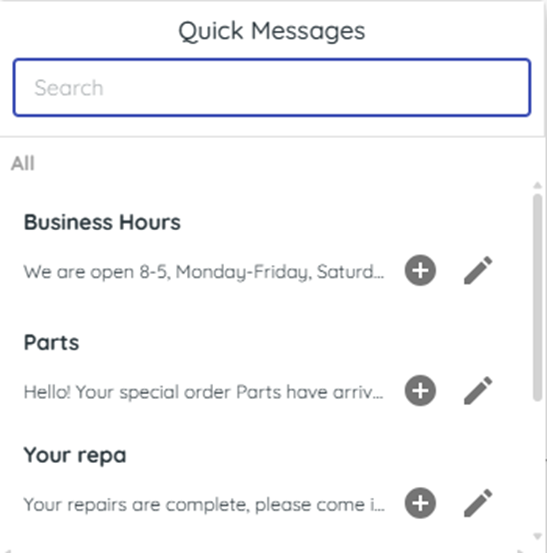
1) Click the speech bubble and choose a template.
You’ll see the quick message inserted in your text box.
Templates save time and keep tone consistent.
2. Understand opt-out and resubscribe
1) If a customer replies STOP or UNSUBSCRIBE, messaging stops automatically.
You’ll see they’re unsubscribed for that department’s number. They are also unsubscribed from any future Broadcasts or Surveys.
Customers can rejoin any time by texting START or UNSTOP.
3. Department-level unsubscribe
1) Note which Department the customer texted. By default, most stores use four departments: Sales, Service, Parts, and Marketing.
You’ll see unsubscribes applied per department.
A customer can opt out of one or more departments and still receive texts from the others.
4. First-message disclosure
1) Send an initial message to a new contact.
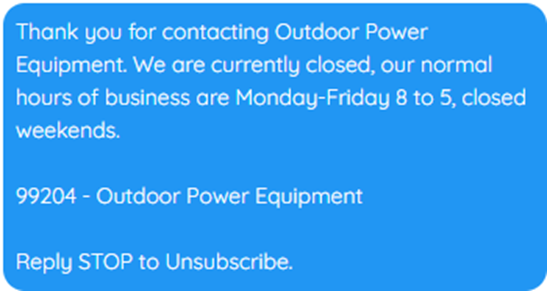
You’ll see “Reply STOP to unsubscribe” automatically included on the first message in each conversation.
This keeps your messaging compliant.
Related KB articles
– Send and receive texts in Messenger