
Overview
Filter by department or user, focus on unread items, archive completed threads, and stitch threads that split.
1. Filter by department and location
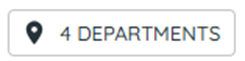
1) Click Departments at the top right and select the departments/locations to show.
You’ll see only selected departments in the list.
This filter is persistent until you change it.
2. Filter by user, message type, and include unassigned
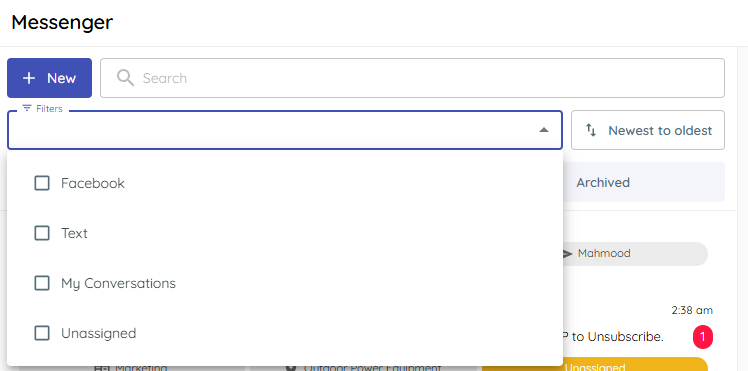
1) Click Filters and choose your preferred filters, you can select multiple.
Facebook: Only Facebook messenger conversations will be displayed.
Text: Only Text (SMS messages will be displayed.
My Conversations: Only conversations assigned to your UserID will be displayed.
Unassigned: Only conversations with no assigned user will display. Unassigned typically means no one has replied to that customer yet.
3. Focus on unread
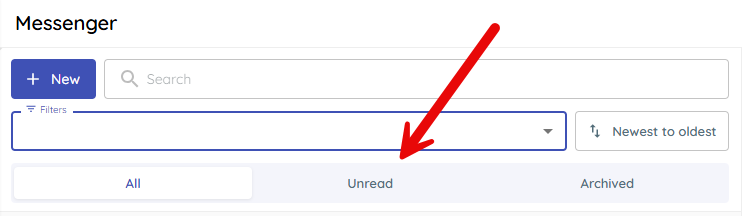
1) Click Unread at the top.
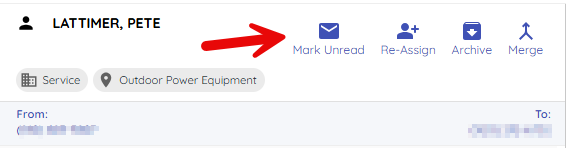
You’ll see conversations no one has opened at your store. Unread flags are shared store‑wide and clear as soon as someone opens the thread. You can also mark a thread Unread to restore the flag.
4. Archive completed threads
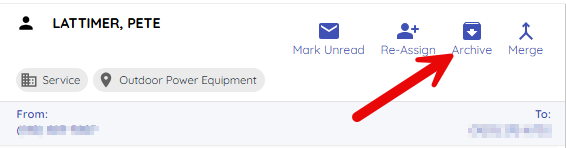
1) Click Archive, enter a title, and confirm.
You’ll see the thread removed from active view and listed under Archived.
Archiving keeps your active list clean.
5. Merge with an archived thread
1) In a new conversation, click Merge and pick the archived thread.
You’ll see both stitched into one continuous history.
Example: You archived a thread after no response, and the customer texts back a week later after a trip; merge the new thread with the archived one.
Related KB articles
– Search and start new conversations