
Overview
Initiate texts in IDEAL and send automated status updates using IDEAL templates. All replies appear in Target CRM.
1. Text from customer properties
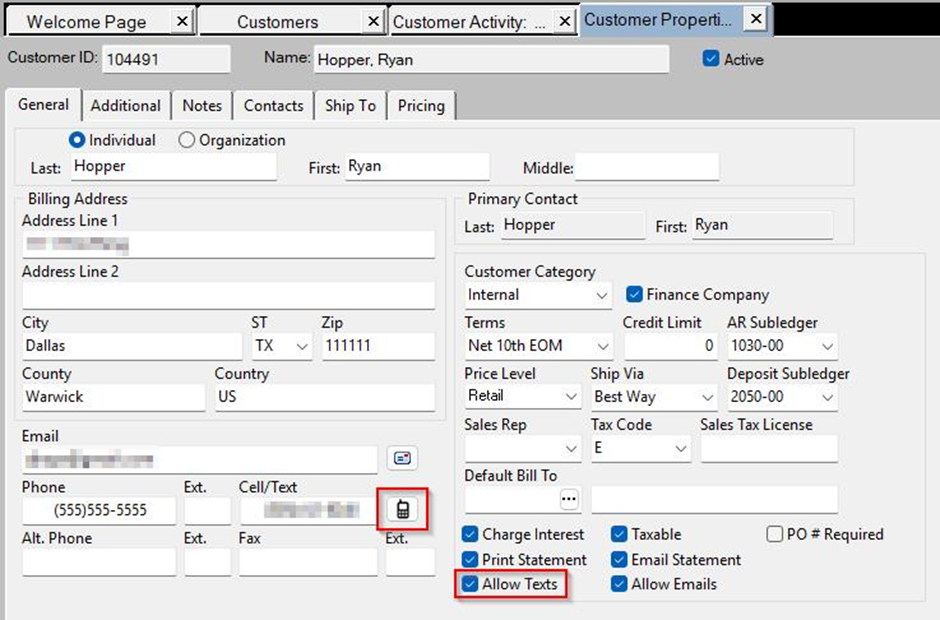
1) Click the cell phone icon next to the customer’s mobile in IDEAL (Allow Text must be checked).
You’ll see a compose window using IDEAL templates.
Allow Text in IDEAL only controls texting from IDEAL (not from TargetCRM).
2. Text from a sales order
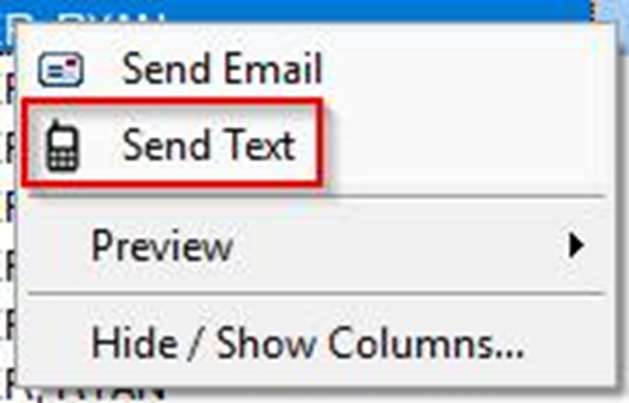
1) Right‑click the order in IDEAL and select Send Text.
You’ll see a compose window with your IDEAL template.
It’s handy when you’re already in orders.
3. Remote Pay from a customer pay ticket
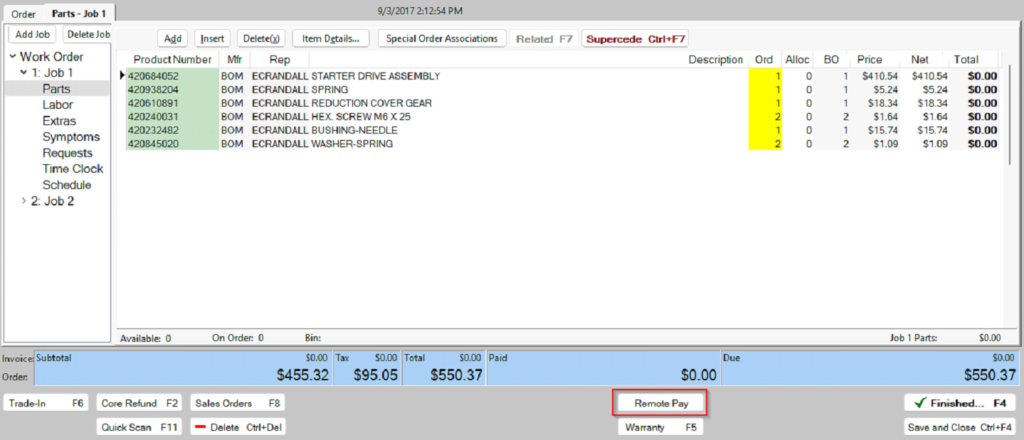
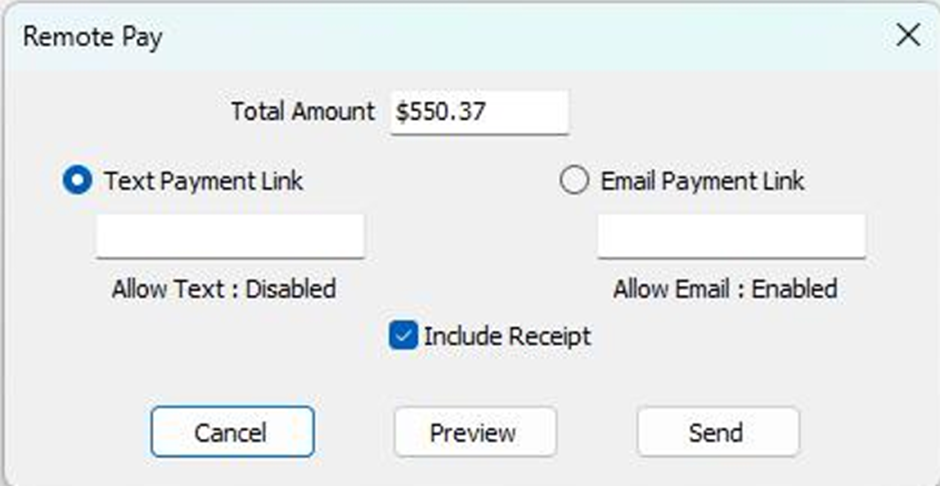
1) Click Remote Pay and select the invoice.
You’ll see a payment link sent with an invoice copy.
Payments apply back to the IDEAL invoice.
4. Automated SMS by status (IDEAL)
1) In IDEAL Sales Setup > Preferences, set a status trigger for sales orders, work orders, and (optionally) parts received.
You’ll see texts send when those statuses occur.
Templates are chosen from System Manager > Email/Text Messages (primary templates are used).

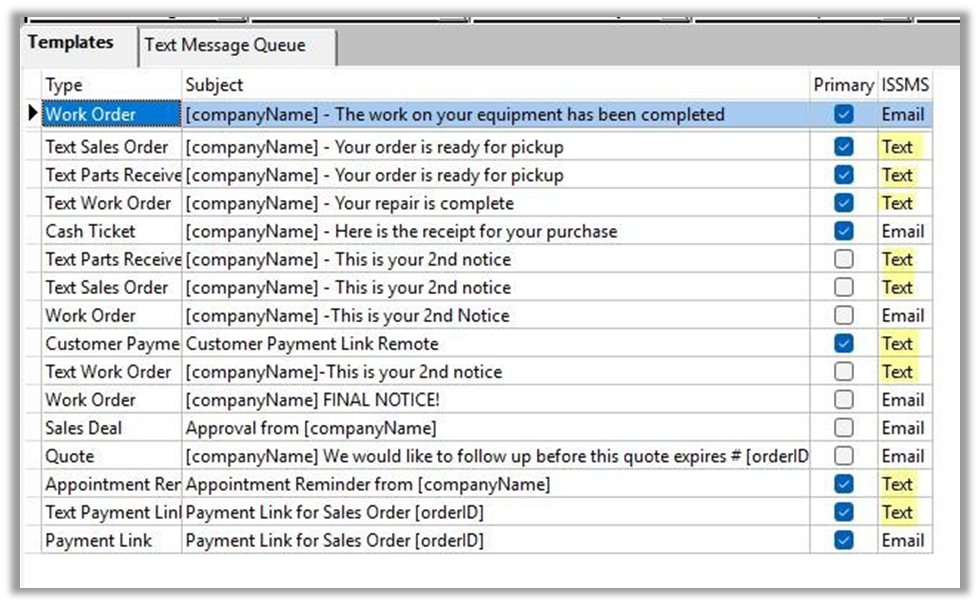
> Tip: IDEAL Support can help you build and mark primary templates. Customer replies land in Target CRM Messenger for your team.
Related KB articles
– Text to Pay (IDEAL/INFINITY + Gravity/TargetPay)