
Overview
Key settings live in General settings and in each survey’s settings. Automated surveys rely on invoices being closed.
1. General settings
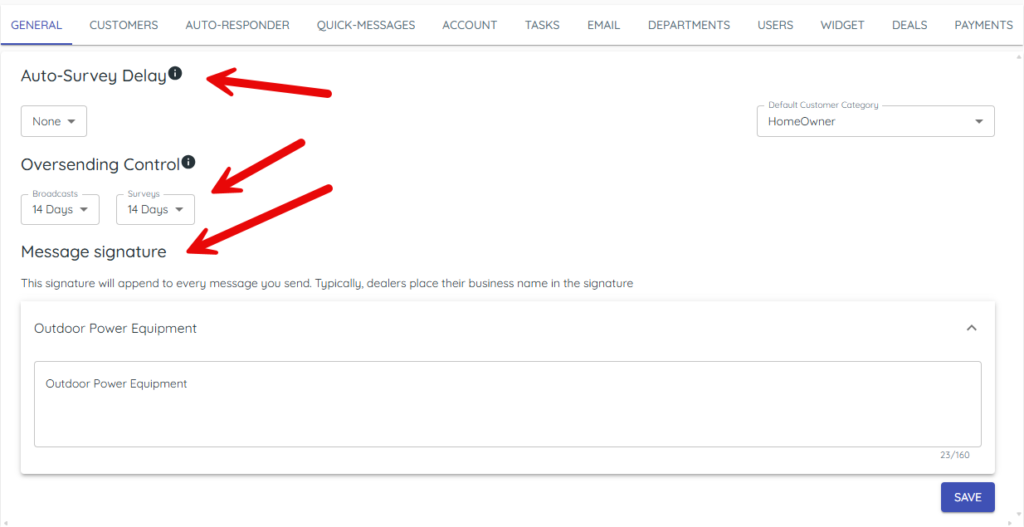
1) Open Settings > General to manage Auto-survey delay, oversending controls, and message signature.
You’ll see fields for Auto-Survey Delay, Oversending Control > Survey, and Message Signature.
These govern timing, frequency, and appended content.
2. Departments
1) In an automated survey’s settings, switch on Parts, Equipment, and/or Service.
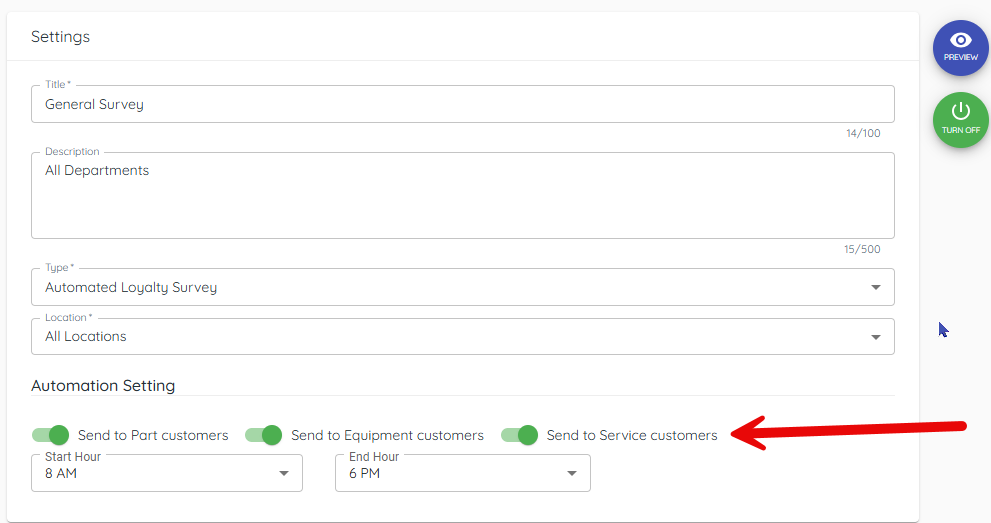
You’ll see surveys send after invoices are closed in those departments.
This is the core trigger.
3. Invoices trigger surveys
1) Close or finalize invoices in Aspen, IDEAL, or Infinity as usual.
You’ll see surveys send shortly after closure.
Timing can be immediate or delayed per your settings.
Tips to Work Faster
– Start with a 14-day oversending control; adjust after monitoring volume.
Related KB articles
– Turn on Automated Surveys and hours
– Send a broadcast loyalty survey