
Overview
Check performance and handle failures, clicks, replies, and unsubscribes.
1. Open Analytics
1) Go to Broadcasts > Analytics.
You’ll see each broadcast with send date, groups, and metrics.
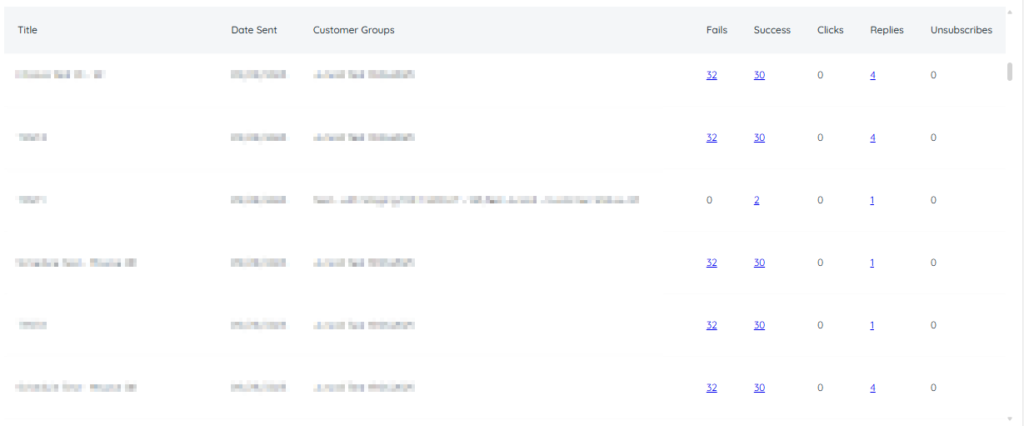
Review performance about 24-48 hours after sending.
2. Investigate failures
1) Click the failures link.
You’ll see a list with specific reasons (e.g., landline, invalid, unsubscribed).
Download the list to fix numbers in your DMS or TargetCRM.

3. Review clicks and replies
1) Check clicks and replies.
You’ll see short-link click totals and message replies.
Use replies to start one-on-one follow-ups.
4. Understand unsubscribe behavior
1) Look at unsubscribes.
You’ll see who opted out by replying STOP or UNSUBSCRIBE. The first text in a conversation automatically includes “Reply STOP to unsubscribe.”
Unsubscribing after a broadcast affects the Marketing department (broadcasts and surveys). Service, Parts, and Sales can still text unless the customer unsubscribes from those departments too. Unsubscribing from any department also automatically unsubscribes them from Broadcasts and Surveys.
5. Resubscribe if asked
1) If a customer wants to resubscribe ask them to text START or UNSTOP.
You’ll see them restored for Marketing messages.
This re-enables future broadcasts and surveys.
Tips to Work Faster
– Check Analytics about 24 hours after sending to see full performance.
– Use the failure list to clean records and improve delivery next time.
Related KB articles
– Broadcast Oversending controls and email settings
– Add links, emojis, merge tags, and templates to a broadcast