
Overview
Start with preloaded groups and understand what you can change.
1. View preloaded groups
1) Open Customer Groups.
You’ll see about 20–25 groups (e.g., Parts last 90 days; Equipment last year; Service last week; $0 LTV).
These are ready to use immediately.
2. Open a group to inspect
1) Click a preloaded group.
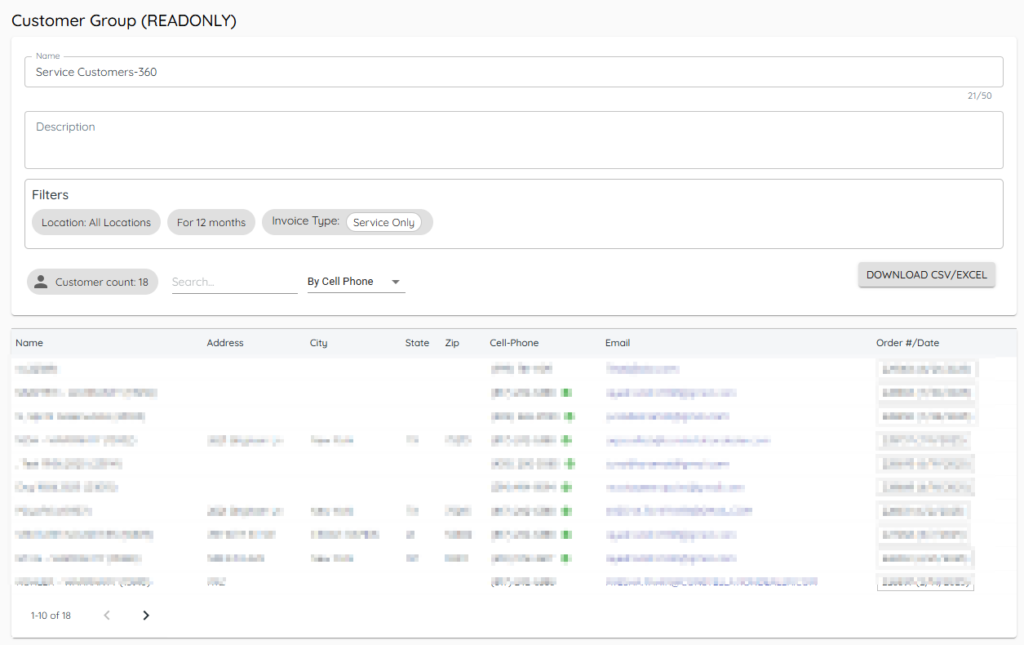
You’ll see members and the filters used.
Preloaded groups are read-only to protect standard definitions.

3. Download members to CSV
1) Click Download.
You’ll see a CSV saved locally.
Use it for reporting or follow-ups.
4. Note cell auto-validation
1) Look for a green check mark next to a cell number.
This indicates a new landline number that has been identified as a cell phone number for a customer that did not previously have one.
This ensures you can text the right number.
Tips to Work Faster
– Clone the logic of a premade group by building your own group with similar filters.
Related KB articles
– Build customer groups with filters
– Apply Customer Status and Customer tags to a Customer Record