
Overview
Request payment by text; the payment posts back to the selected IDEAL invoice.
1. Request a payment or deposit
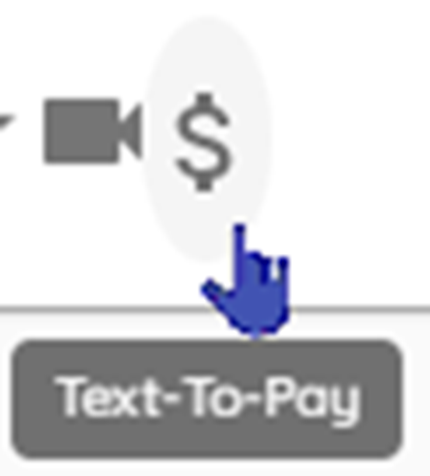
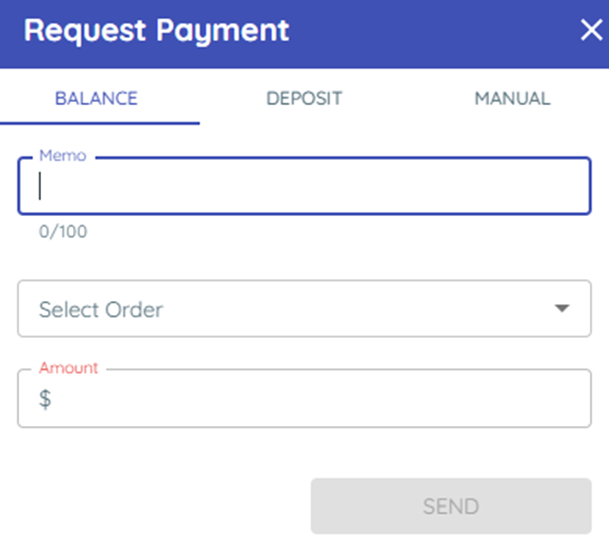
1) Click the dollar icon in Messenger (if enabled), then choose an open order.
You’ll see the total amount auto-filled. For deposits, enter a flat amount or a deposit percentage.
Payments are tied back to the original invoice in IDEAL. You can also choose manual to request payment without an open invoice.
2. Customer pays by link
1) The customer taps the link and completes payment on their phone.
You’ll see funds apply back to the invoice in IDEAL.
You still close/finalize the invoice in IDEAL as usual.
> Support tip: Payment credentials are set by support in Settings > Payments (contact support via Chat).
Related KB articles