
Overview
Automations watch service work orders and trigger tasks, texts, or emails when the status changes.
1. Open Automations
1) Click Automations on the left menu.

You’ll see tabs for Automations, Analytics, and Queue.
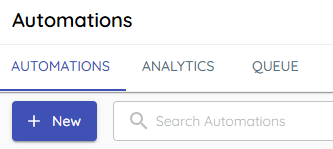
This is where you create and review automation activity.
2. Start a new automation
1) Click New.
You’ll see the new automation drawer open.
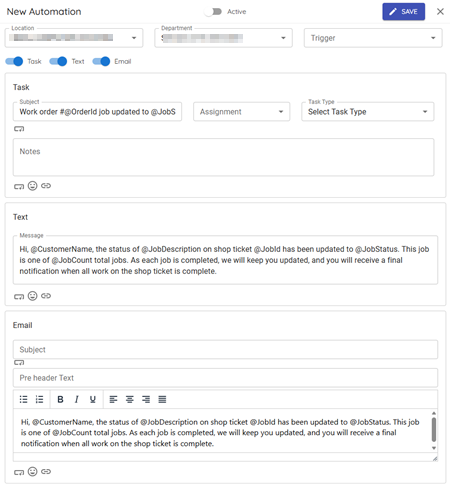
This is where you define what runs and when.
3. Set scope: Location and department
1) Select Location and Department.
You’ll see dropdowns for store and department.

Choose which store and which department sends messages.
4. Choose the trigger status
1) Select Trigger from the list of recent work order statuses (last 60 days).
You’ll see statuses used in your DMS.
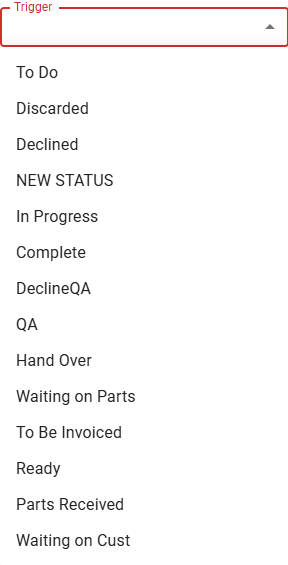
This sets off the automation when a work order reaches that status.
5. Pick what happens next
1) Turn on Tasks, Texts, and/or Emails.

You’ll see configuration panels for each type.
Choose any combination based on your workflow.
Tips to Work Faster
– Create separate automations for statuses that require customer action, like “waiting on customer,” “waiting on parts,” “parts received,” and “complete.”
Related KB articles
– Configure tasks in automations
– Configure texts in automations