
Overview
Use Orders to view open/closed work orders, sales, and parts orders.
1. Open Orders
1) Click Orders on the left menu.
You’ll see a list of orders with filters.
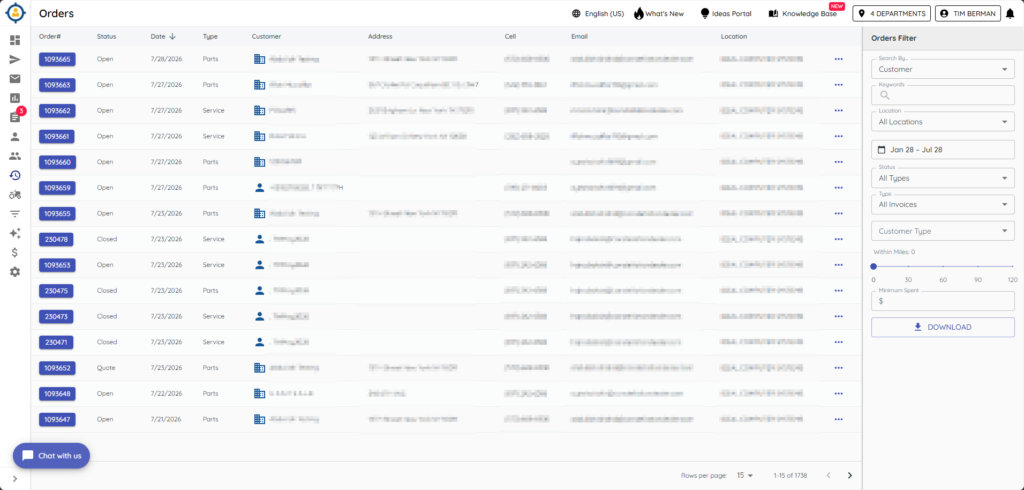
This is a read‑only view.
2. Filter and search
1) Use filters for date range, store, and order types. Use search for customer, part/model, serial, etc.
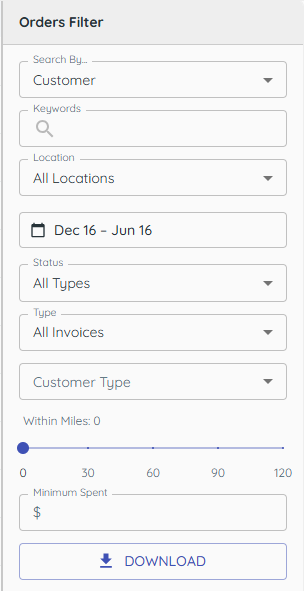
You’ll see the list narrow to matches.
This helps you locate specific activity.
3. View order history from a customer
1) Open a customer record and click the Orders & Quotes tab.
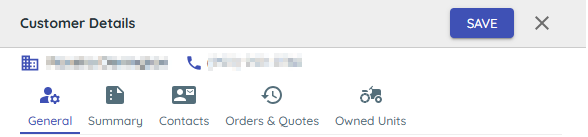
You’ll see every order for that customer.
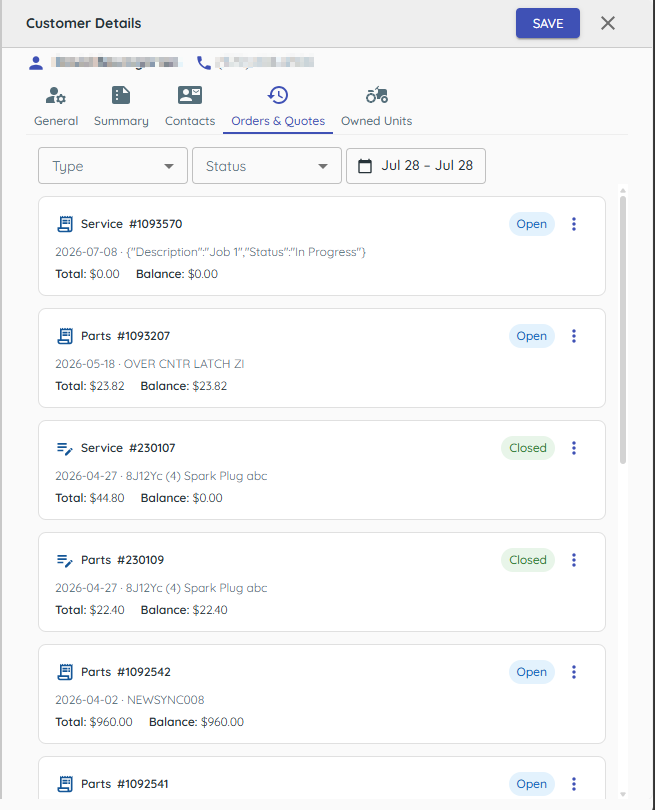
This gives you context per customer.
4. Preview and Text Orders
1) From the Orders Screen, or the Customer Details Orders tab, select the ellipsis (three dots) icon.
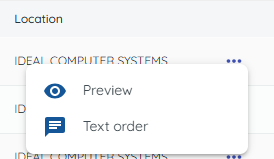
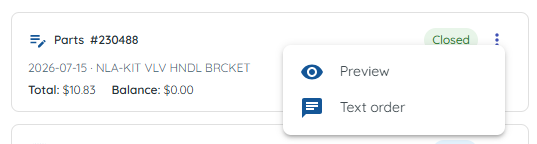
2) Select Preview to view the order on screen
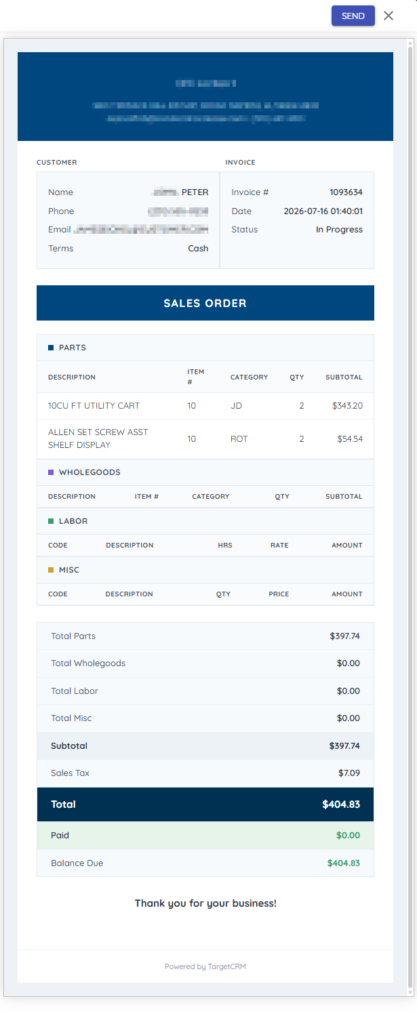
You can choose Send to text the order from the preview window.
3) Select Text Order to text a copy of the order directly to the customer.
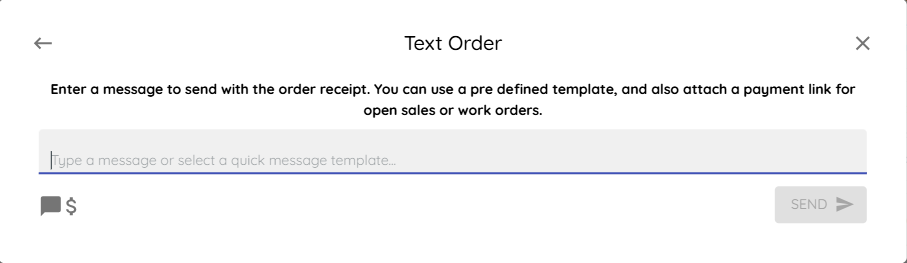
You will have the opportunity to choose from any of the related customer’s cell phone numbers.
If Text-to-Pay is enabled, you can text a request for payment along with the order.
5. Download to CSV
1) From the Orders screen Click Download.

You’ll see a CSV saved.
Use it for quick reference or reporting.
Related KB articles
– Look up inventory (wholegoods and parts)
– Mobile app — inventory, customer orders, and task notifications