
Overview
Tasks assign internal follow-ups to a specific employee with key work order details.
1. Turn on Tasks
1) Toggle Tasks on in the automation drawer.
You’ll see fields for subject, notes, assignee, and task type.
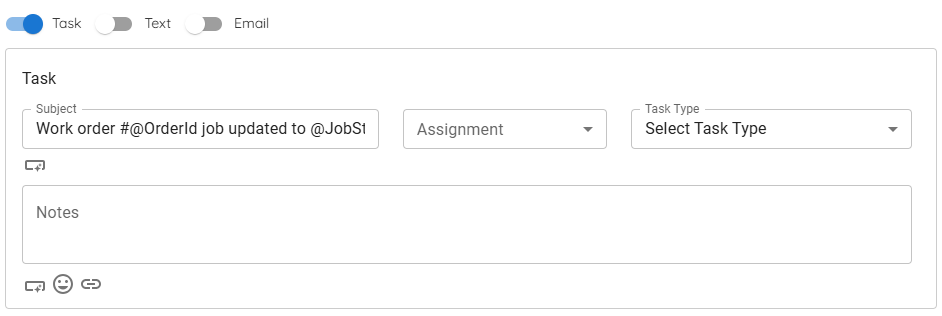
This creates an internal to-do when the status changes.
2. Write the task subject
1) Enter Subject and include merge tags like @OrderId and @JobStatus.
You’ll see dynamic fields inserted.
3. Add notes with work order details
1) Enter Notes and add merge tags such as @CustomerName, @InvoiceId, @JobId, @JobDescription, @JobStatus.
You’ll see details appear in the created task.
4. Assign the task
1) Choose Assignment.
You’ll see a single user assigned for each triggered task.
5. Set task type
1) Select Task Type (e.g., phone call, text, email).
You’ll see the task type saved with the task.
This clarifies how the assignee should follow up.
Tips to Work Faster
– Use clear verbs in the subject so the assignee knows exactly what to do.
Related KB articles
– Configure texts in automations