
Overview
Emails notify customers when work order statuses change. You must set email settings before sending.
1. Turn on Emails
1) Toggle Emails on in the automation drawer.
You’ll see fields for subject, preheader, and body.
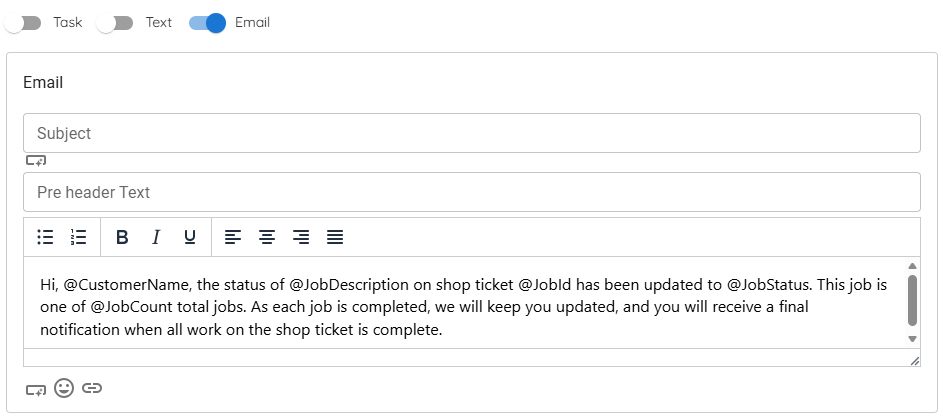
This sends an email when the trigger status is reached.
2. Write the subject and preheader
1) Enter Subject and Pre header Text.
You’ll see both saved with the email template.
Clear, short lines improve open rates.
3. Write the message body
1) Enter the Email Body and use merge tags like @CustomerName, @JobDescription, @JobId, @JobStatus.
You’ll see placeholders for work order details.
To Set required email settings > See Broadcast Oversending controls and email settings
Tips to Work Faster
– Use your business name for Email sender name and Reply to name.
Related KB articles
– Monitor automations: Queue and Analytics