
Overview
Texts notify customers when work order statuses change. Only customers with a cell number get texts.
1. Turn on Texts
1) Toggle Texts on in the automation drawer.
You’ll see a message field with a default template.
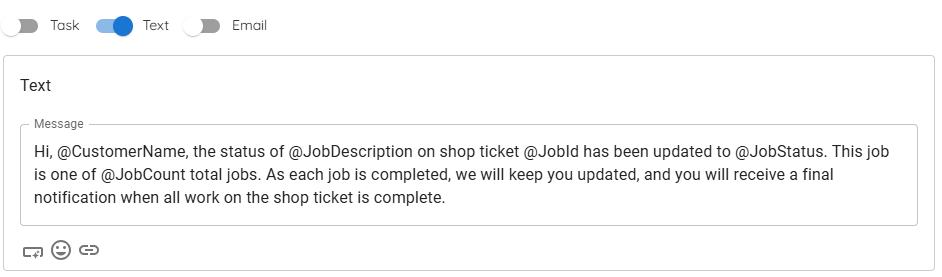
This sends a text when the trigger status is reached.
2. Edit the message template
1) Update Message, using merge tags like @CustomerName, @JobDescription, @JobId, @JobStatus.
You’ll see placeholders for work order details.
> Automation texts go to customers only; for staff alerts, rely on task notifications in the mobile app.
3. Confirm customer eligibility
1) Verify customers have a cell number on file.
You’ll see texts go only to mobile numbers.
This avoids failed sends to landlines.
Related KB articles
– Configure tasks in automations