
Overview
The Message tab in the Survey editor defines the outgoing text. The questions tab sets the NPS question and follow-ups for the passive and promoter path and the detractor path.
1. Compose the text message
1) Open Message and enter up to 120 characters in Survey Text Message.
This Text automatically appends the survey link.
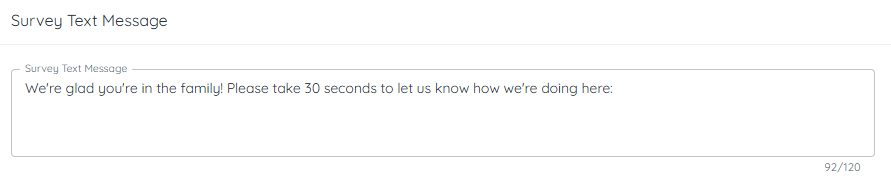
Short, clear text boosts click-through.
> Tip: Mention it takes “about 30 seconds.”
2. Configure the NPS question
1) Open questions and review the first question.
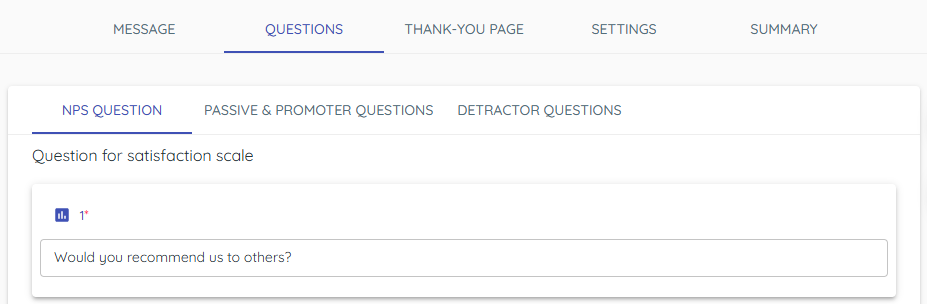
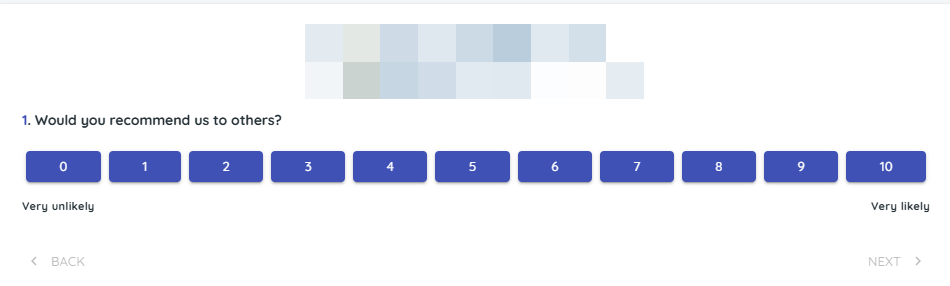
You’ll see the NPS prompt, for example “Would you recommend us to others?”.
This is the 0–10 question; customers see and answer on a 0–10 scale in the survey.
NPS in plain terms: it shows how likely customers are to recommend you. Scores 9–10 are promoters, 7–8 are passives, and 0–6 are detractors.
3. Edit the passive and promoter questions
1) Edit the follow-up prompt for scores 7–10.
You’ll see a free-text question for passives and promoters.
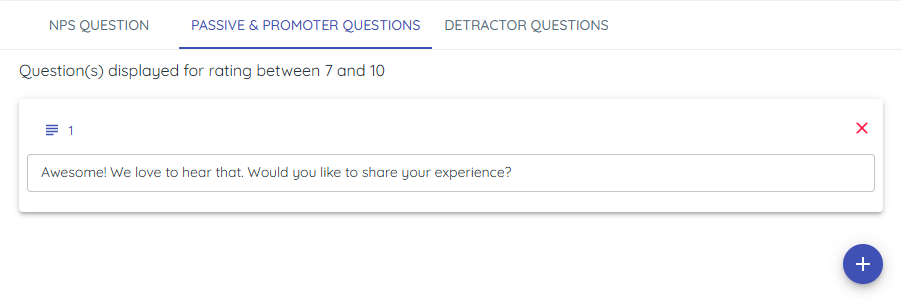
Ask for details that matter to you, such as which employee helped the customer.
4. Edit the detractor questions
1) Edit the follow-up prompt for scores 0–6.
You’ll see a free-text question for detractors.
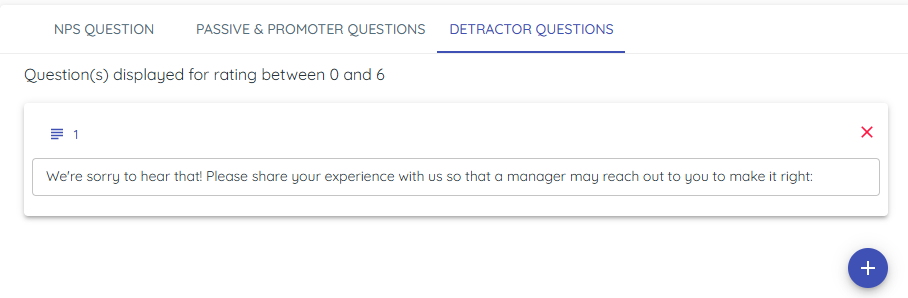
This captures issues for managers to resolve.
5. Preview the flow
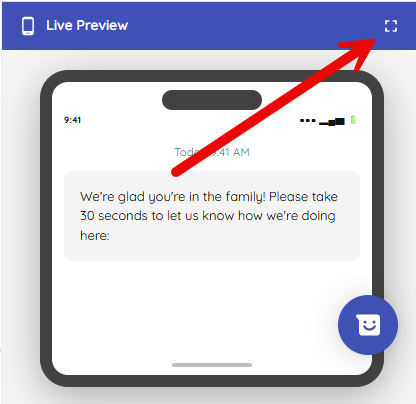
1) Expand the Live Preview to view the flow.
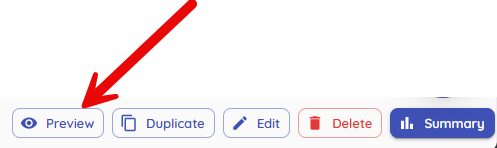
Alternately, select the preview button from the main Survey screen.
You’ll see the logo, the 0–10 question, follow-up, and the thank you page.
Previewing prevents surprises before you send real surveys.
Tips to Work Faster
– Keep surveys short to improve completion.
– Add a note if you plan to reuse a customer’s comments for advertising.
Related KB articles
– Survey thank you pages and review links
– Turn on Automated Surveys and hours