
Overview
You’ll see a pop-up, bell notifications, mobile notifications, and a survey detractor email so you can act fast.
1. Watch pop-up notifications
1) Keep Target CRM open while you work.
When a new survey is submitted you’ll see a small bubble at the bottom of the screen with the score.
This keeps you informed in real time.
2. Check the bell icon
1) Click the bell at the top right.

You’ll see recent survey-response notifications.
It’s a quick way to scan new activity.
3. Turn on the survey detractor email
1) Click your username and open User Profile.

You’ll see switches for what to email you about.
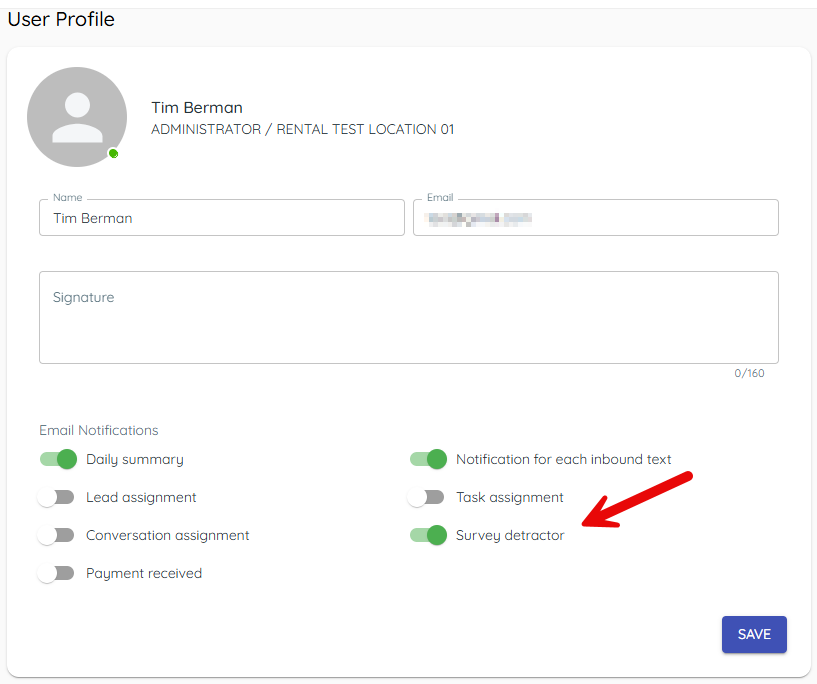
Turn on survey detractor to receive an email when a customer submits a detractor score (0-6 out of 10).
4. Use mobile notifications
1) Allow notifications in the mobile app.
You’ll see alerts as surveys arrive.
This lets you react when you’re away from your desk.
Tips to Work Faster
– Send survey detractor emails to managers who can act immediately.
Related KB articles
– Review feedback and analyze NPS
– Mobile app — Check survey feedback anywhere