
Overview
Use the Feedback screen to read responses, filter them, download them to a spreadsheet, and track NPS on the dashboard and by store.
1. Open the Feedback tab inside the Surveys screen
1) Click Feedback on the left menu (speech bubble with exclamation).
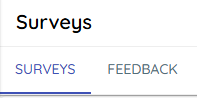
You’ll see responses with timestamps, customers, scores, and comments.

The Trendline icons indicate increases or decreases compared to last month’s survey results.
Once submitted, responses are permanent.
2. Filter and search
1) View the Feedback Filter on the right side of the screen.
You’ll see options for date range, location, response type, keyword, and score bands.
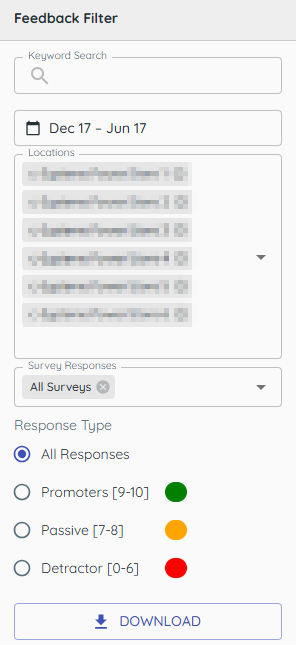
Filters help you isolate trends, names, and issues.
3. Open customer records
1) Click a customer’s name.
You’ll see the customer’s details, including last survey rating.
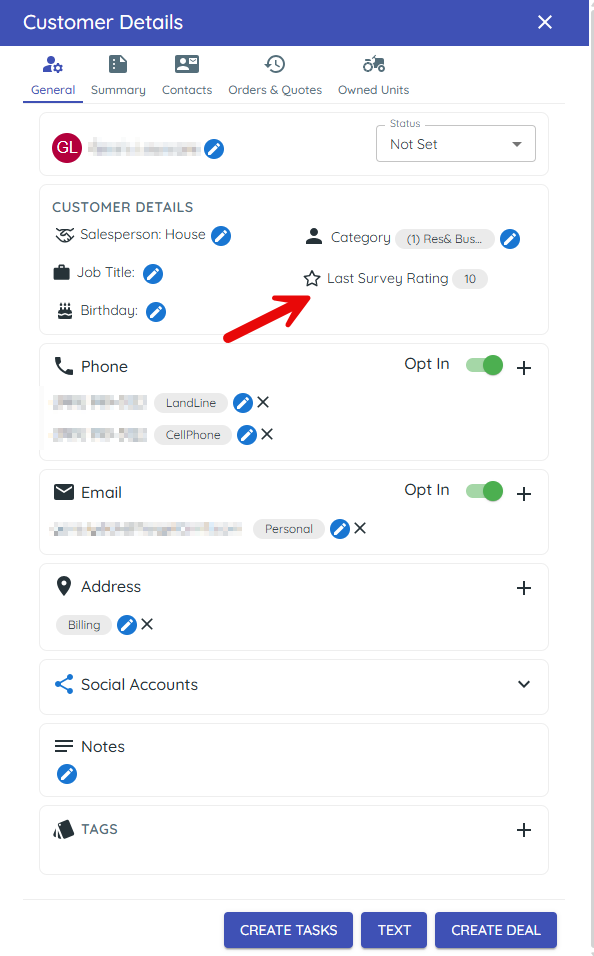
This gives context to their feedback.
4. Download to a spreadsheet
1) Click Download.

You’ll see a spreadsheet saved to your computer.
Use it for deeper reporting and sharing.
5. Understand NPS on dashboards
1) Open the Dashboard or Feedback to view totals and NPS.
You’ll see counts for detractors (0–6), passives (7–8), promoters (9–10), and loyalty score, and a chart tracking NPS over time.
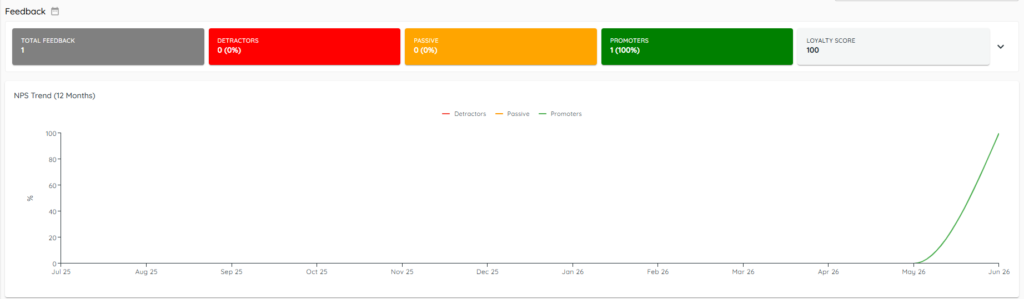
Net Promoter Score is calculated as the Promoter % minus the Detractor %.
In Target CRM, “loyalty score” and “NPS” refer to this same value.
Tips to Work Faster
– Search Feedback for employee names to recognize great service.
Related KB articles
– Survey alerts and configure notifications
– Mobile app — Check survey feedback anywhere