
Overview
Share your Google and Facebook links from Messenger, as a broadcast, or automatically via your message signature.
1. Insert links in Messenger
1) Open a conversation in Messenger and click the star button.
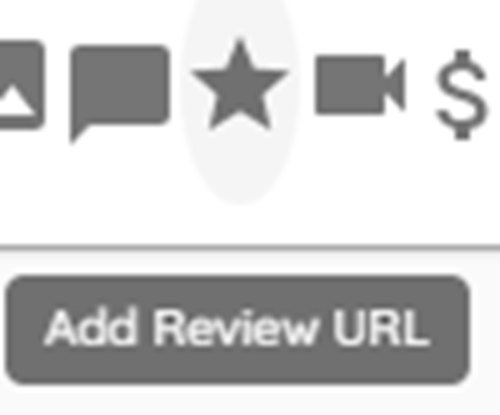
You’ll see options to insert your Google or Facebook link.
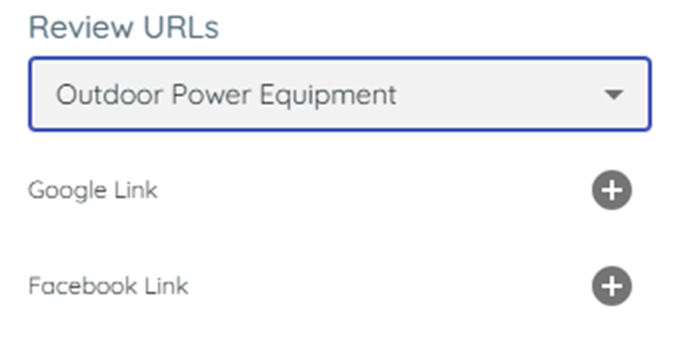
This makes it easy to ask for a review.
2. Choose the right store
1) Select the correct Store Name before inserting links.
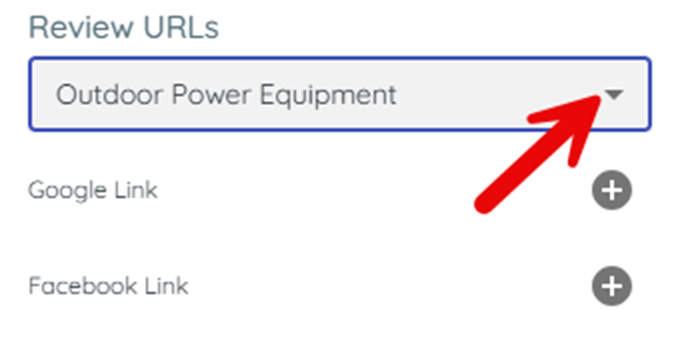
You’ll see the store context applied to the link.
This prevents reviews from landing on the wrong page.
3. Use a template message
1) Create a template Quick Message that includes the review link.
You’ll see reusable text ready in Messenger.
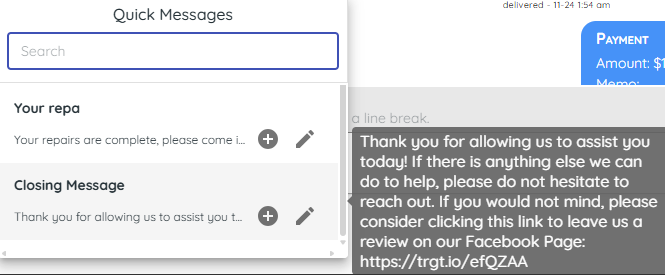
Templates save time and keep your tone consistent.
4. Add links to broadcasts
1) Build a Broadcast and use the Star Button to insert your Google Link or Facebook Link.
You’ll see the link in the message body.
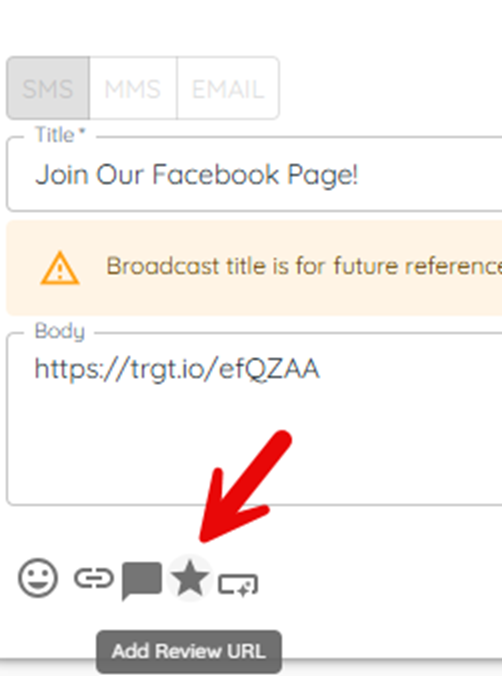
This scales your outreach to many customers at once.
5. Add links to your message signature
1) Go to General settings and add your Google Link and/or Facebook Link to the message signature.
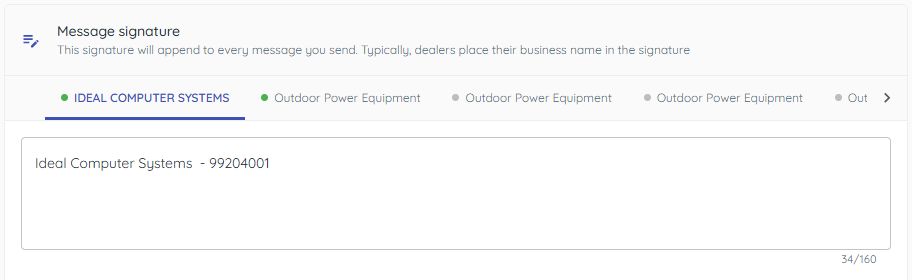
You’ll see links automatically appended to every text.
This maximizes visibility but could surface links to unhappy customers too.
> Tip: Include your business name in the message signature.
6. Manage your social media links
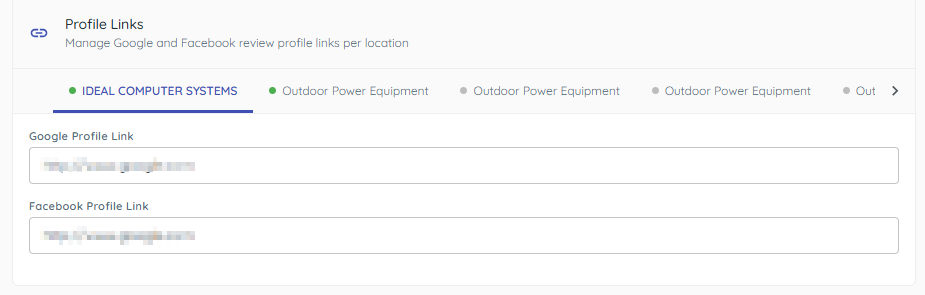
1) You can view and change the social media links for each of your store locations in the same General Settings screen. Please feel free to reach out to TargetCRM support if you would like assistance adding new links here.
Tips to Work Faster
– Use the star button after a good interaction.
– Keep broadcasts and signatures aligned with the correct store.
Related KB articles
– Survey thank you pages and review links