
Overview
If surveys aren’t sending or customers don’t receive them, check these settings first.
Remember that Surveys are sent in batches once per hour.
1. Customer didn’t get a survey
1) Confirm the customer has a mobile number on file.
You’ll see whether a valid cell exists.
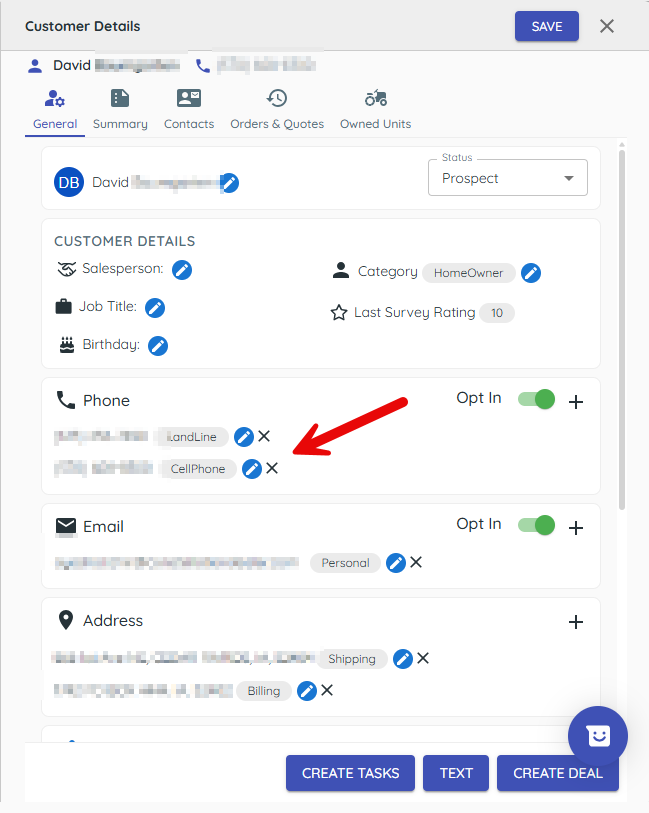
Surveys go out by text only.
2. Automated survey is not sending
1) Open the survey and check the Power button is turned on.

You’ll see the active status.
Surveys won’t send while off.
2) In survey settings, confirm at least one department is enabled.
You’ll see toggles for Parts, Equipment, or Service.

Automation requires at least one department enabled, which will display as green.
3) Check hours from survey settings and Auto-survey delay from Settings > General.
You’ll see the permitted window and any delay.
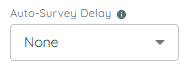
After-hours closures wait until morning; delays can postpone sends.
4) Oversending Controls prevent customers from being surveyed too often. An auto survey will not send to a customer who has been surveyed in the last two weeks (14 days). Broadcast surveys can have their oversending control settings adjusted from Settings > General.
3. Broadcast survey took a while
1) Expect about 20–25 text messages a second for large sends.
You’ll see gradual completion for very large lists.
This is normal at high volume.
5. Preview before you go live
1) Expand the Live Survey Preview, or Use Preview from the main Surveys screen to test the full flow.
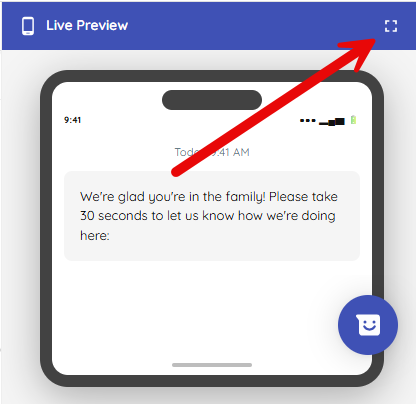
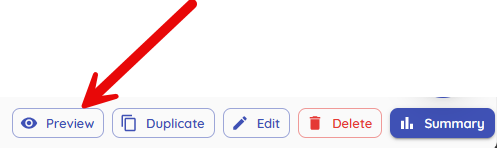
You’ll see what customers will experience.
Catching issues early prevents rework.
Tips to Work Faster
– Start with a small audience to validate content and links.
– Use Feedback filters to confirm responses are arriving.
Related KB articles
– Turn on Automated Surveys and hours