
Overview
Turn automations on, test them, and adjust as needed. Nothing is permanent.
1. Activate the automation
1) Flip the Active switch to blue.

You’ll see the automation listed as Active.
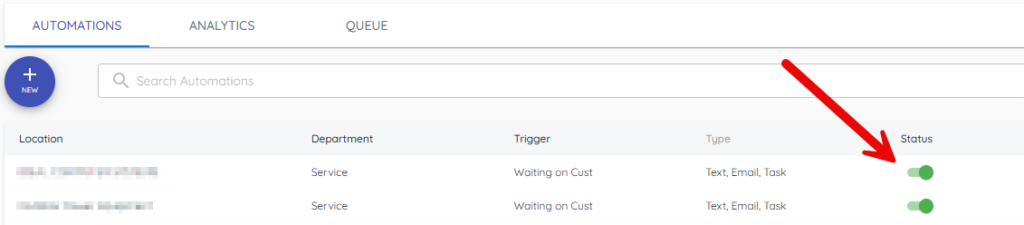
We begin watching work orders immediately.
2. Edit any time
1) Click the automation in the list.
You’ll see the drawer open for edits.
You can adjust wording, recipients, or turn actions on/off.
3. Deactivate when needed
1) Flip the Active switch off.
You’ll see the automation listed as inactive.
This pauses all sends until you re-enable it.
Tips to Work Faster
– Run a short pilot (a few days) and adjust templates before scaling.
Related KB articles
– Triggers, timing, and Ideal/Infinity/Aspen behavior