
Overview
View available inventory across stores. Use filters and locators to find items fast.
1. Open Inventory
1) Click Inventory on the left menu.
You’ll see tabs for Whole Goods and Parts.
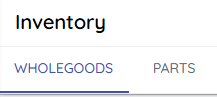
This is a read‑only view from your DMS.
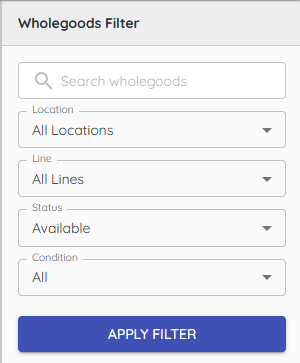
2. Filter whole goods
1) Filter by Location, Product Line, Status, Condition, and Price Range.
3. Filter parts
1) From the Parts tab filter by Location, Product Line, and Availability.
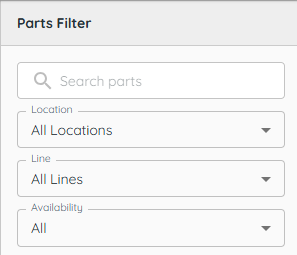
You’ll see on‑hand and non‑stock items.
4. Use equipment/parts locator (if available)
1) Click Equipment Locator or Parts Locator.
Search by make and part/model and you’ll see nearby stores, distance, and phone numbers that have them in stock.
This helps source items you don’t have.
Tips to Work Faster
– Narrow by product line first to reduce long lists in busy seasons.
Related KB articles
– Mobile app — inventory, customer orders, and task notifications