
Overview
You’ll create surveys from the Surveys screen. Start with a title and type, then decide whether it’s automated or broadcast.
1. Open the Surveys Screen
1) Click the Surveys icon on the left menu.
You’ll see the Surveys screen with New Survey and existing survey cards.
This is your hub for all surveys.
2. Start a New Survey
1) Click New Survey.
You’ll see the “new survey drawer” open on the right.
This is where you define basics before editing content.
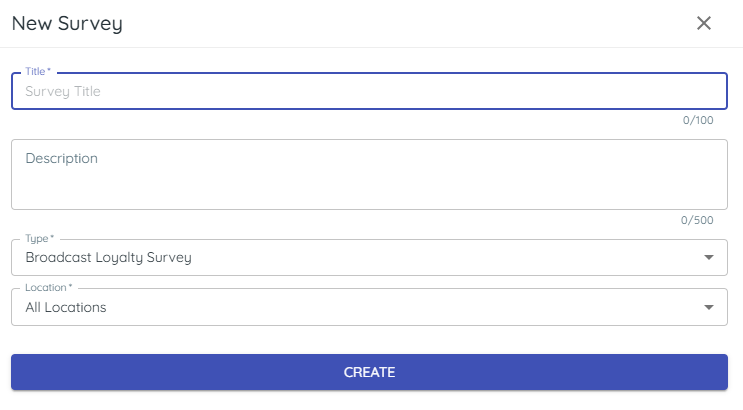
3. Name and Describe the Survey
1) Enter a Survey Title.
You’ll see the title in your survey list; customers never see it.
Clear titles help you stay organized.
2) Optionally enter a Description.
You’ll see the description in the survey details.
This helps teams coordinate how and where the survey is used.
4. Choose a Survey Type
1) Select broadcast loyalty survey or automatic loyalty survey.
You’ll see options for both types.
Pick broadcast to send one survey to many people, but only once; pick automatic to send after each invoice is closed.
5. Select Locations
1) Choose Location (one or all).
You’ll see a drop-down of store locations.
This targets surveys to customers of the right store(s).
6. Prevent Accidental Sends During Setup
1) Set the big green button to Turn off.
You’ll see the survey marked as off while you build it.
This avoids half-finished surveys going out.
Tips to Work Faster
– One survey can cover all locations; it’s easier to manage a single workflow.
– Leave departments off until setup is complete to prevent early sends.
Related KB articles
– Write the survey message and questions
– Survey thank you pages and review links
– Turn on Automated Surveys and hours