
Overview
Broadcast loyalty surveys let you send one survey to many customers at once using customer groups.
1. Switch a survey to broadcast
1) Create your survey as a broadcast loyalty survey, or open settings on your survey and choose broadcast loyalty survey.
You’ll see the survey type update.
Broadcasts send once to a targeted list.
2. Select customer groups
1) Click Continue to open Select Customer Groups.
You’ll see system and custom groups like “Equipment Customers – 90” or “Parts Customer – 360”
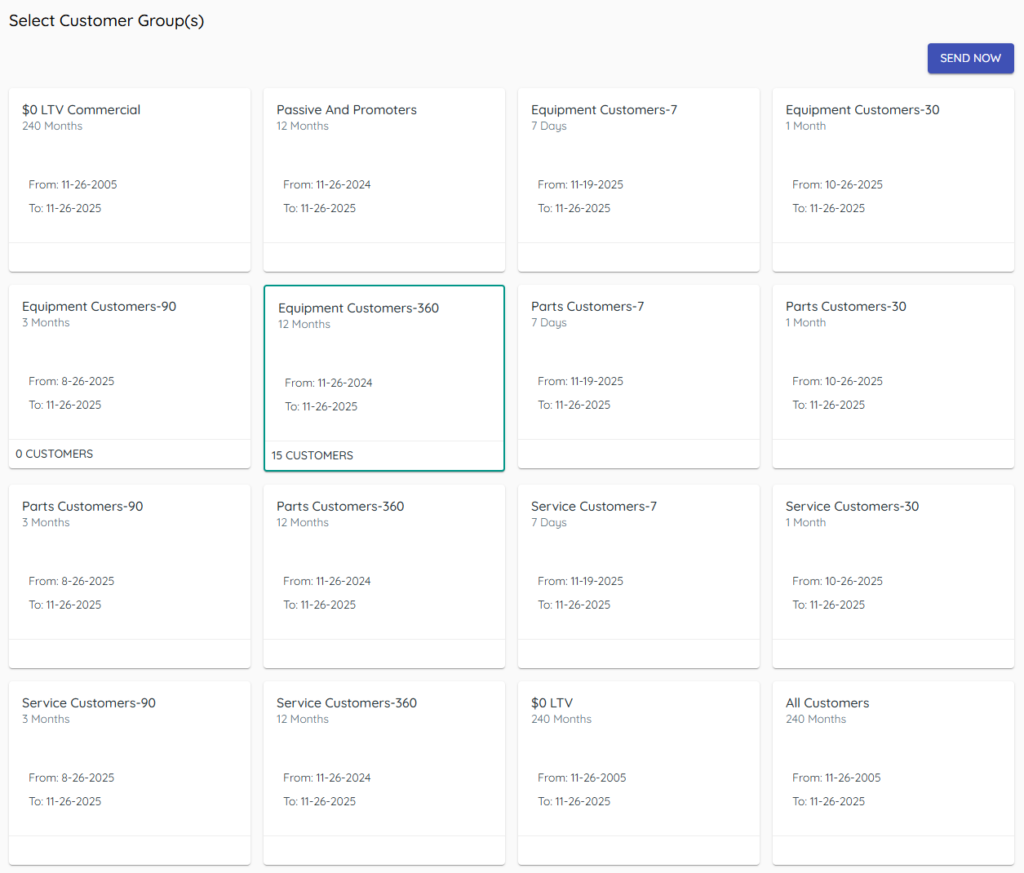
Groups let you target who receives the survey.
3. Send now and delivery rate
1) Click Send Now.
You’ll see the send start immediately.
We send about 20–25 text messages a second, so large sends can take time.
Tips to Work Faster
– Align customer groups to the correct store to keep review links accurate.
– Preview text before sending to thousands.
Related KB articles
– Create a New Survey in Target CRM
– Share review links outside of surveys