
Article 5: Turn on Automated Surveys and hours
Overview
Automatic loyalty surveys watch selected departments. You control departments, hours, and an optional delay.
1. Open an Automated Loyalty Survey, and navigate to the Settings tab.
2. Make sure the survey is on.
1) If the big button, says “Turn On” select it to turn on the survey.
An Active Survey will have a green button.
This activates sending based on your settings.
2. Select departments.
1) Switch on Parts, Equipment, and/or Service on.
You’ll see green toggles when a department is enabled.
Surveys go out when invoices close in these departments.

3. Set hours
1) Adjust the hours for automated surveys.
You’ll see a daily time range Start Hour/End Hour.
After-hours invoice closures wait until the next morning to send.
4. Add an optional delay
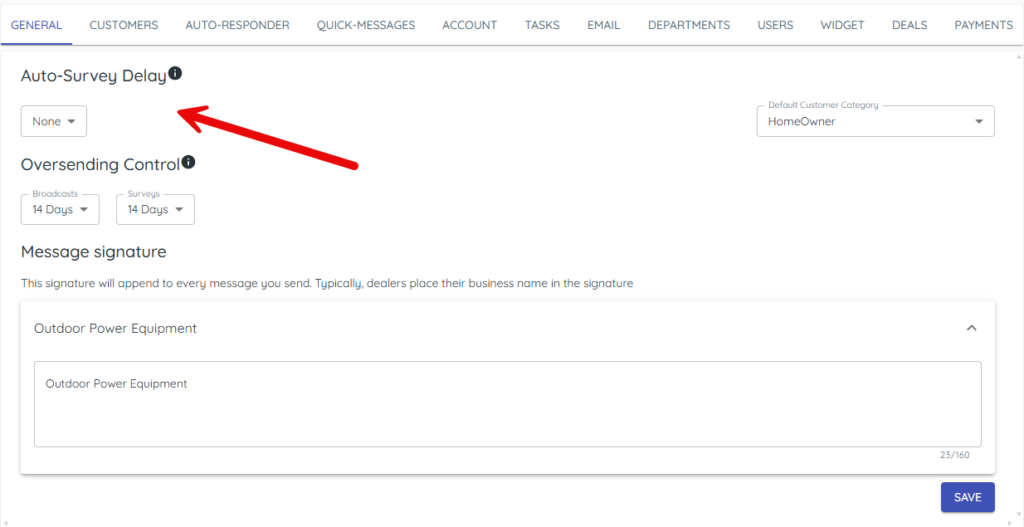
1) In Settings > General, set Auto-Survey delay (None to two weeks).
You’ll see a delay applied to automated sends.
Shorter delays increase response rates.
5. Control over sending
1) In Settings > General, set survey oversending controls (default 14, up to 90).
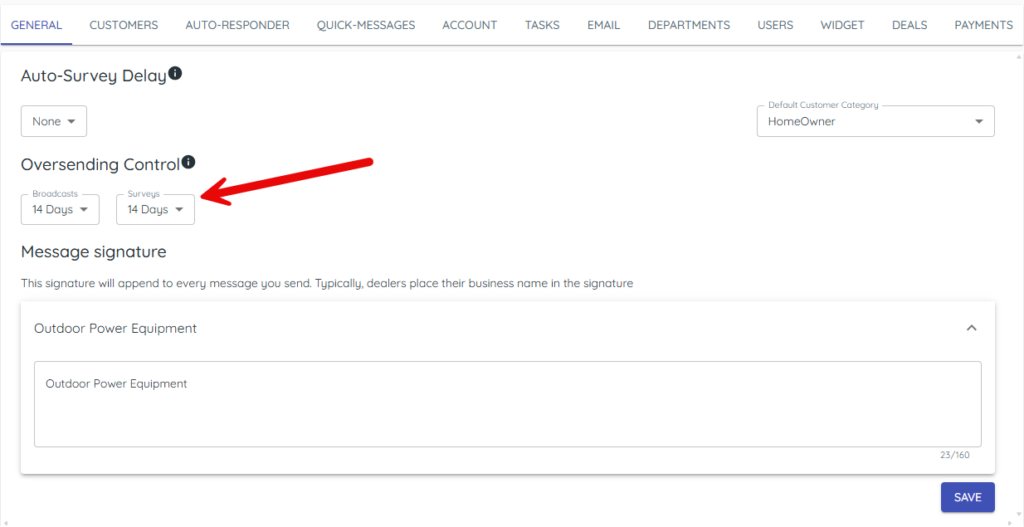
You’ll see a cool-off period that prevents repeat texts.
Frequent customers won’t be spammed.
Tips to Work Faster
– For Auto survey delay, start with None or 1 day for fresher feedback.
– Confirm hours to avoid texts outside of your business hours.
Related KB articles
– Create a New Survey in Target CRM
– Review feedback and analyze NPS