
Overview
Use Orders to view open/closed work orders, sales, and parts orders.
1. Open Orders
1) Click Orders on the left menu.
You’ll see a list of orders with filters.

This is a read‑only view.
2. Filter and search
1) Use filters for date range, store, and order types. Use search for customer, part/model, serial, etc.
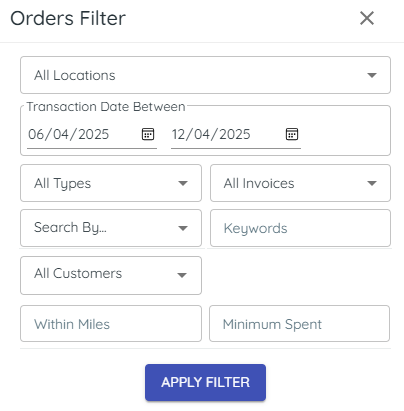
You’ll see the list narrow to matches.
This helps you locate specific activity.
3. View order history from a customer
1) Open a customer record and click the Orders tab.

You’ll see every order for that customer.
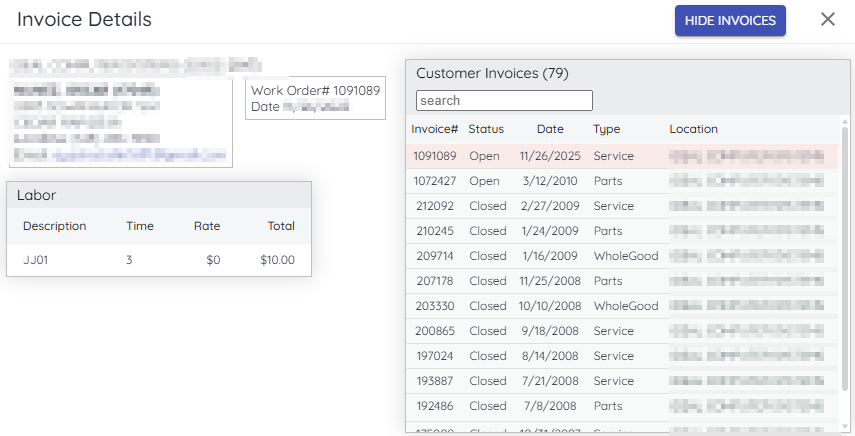
This gives you context per customer.
4. Download to CSV
1) From the Orders screen Click Download.
You’ll see a CSV saved.
Use it for quick reference or reporting.
Related KB articles
– Look up inventory (wholegoods and parts)
– Mobile app — inventory, customer orders, and task notifications