
The UserIDs and Passwords used to access your TargetCRM instance are created/modified in your DMS (Ideal/Infinity/Aspen).
To add a new UserID, first that user and their password must be created in your DMS. Please refer to your DMS knowledgebase and/or support team for assistance in creating a new user.
New Users Need Permissions
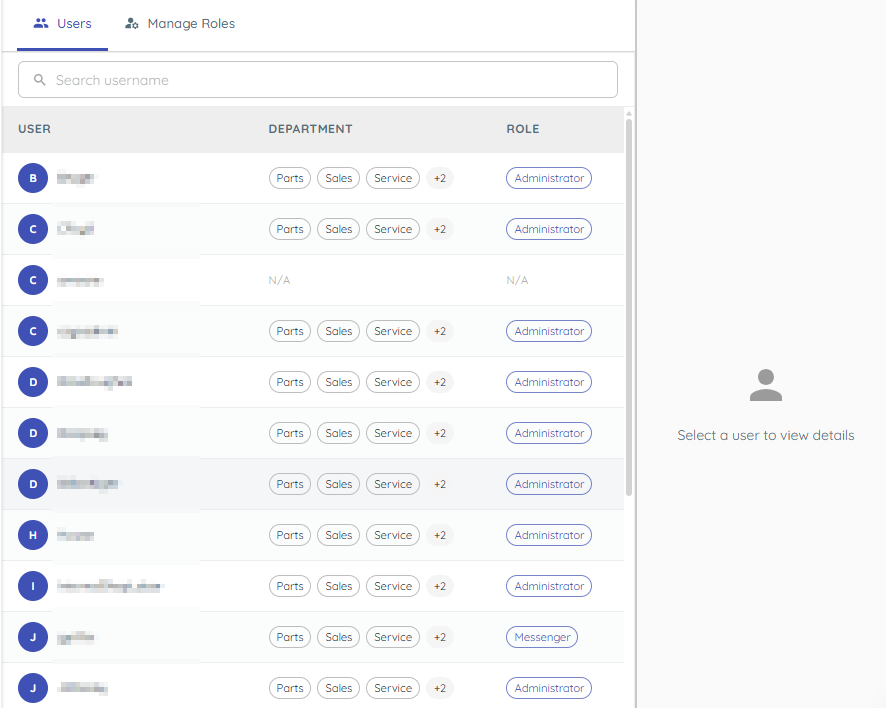
Newly added users are not given any access to TargetCRM by default. They will be unable to log in until their userID has their access edited in Settings > Users.
Role
The role is what determines what screens your user is allowed to access. Any user missing a role (N/A) will be unable to open TargetCRM at all.
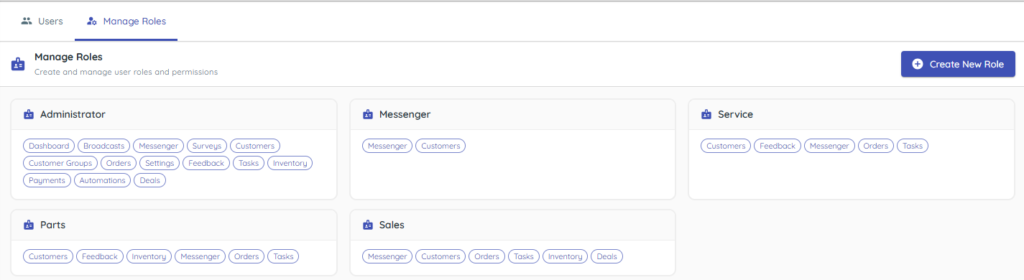
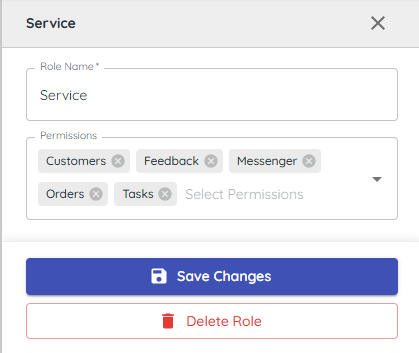
You can view what permissions each role grants, and create and modify new roles using the Manage Roles button.
Users in a role will only be able to view the screens selected.
Department
Department access is what determines which text conversations a user can view. It will also limit their access to specific task types and outcomes, quick messages, and deal pipelines. Users need to be assigned to departments if you want them to use these features.

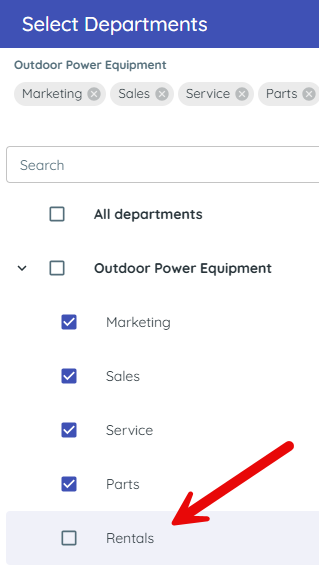
When a user is assigned a new department for the first time, they need to update their department filter if they want to access the messages for that department.
To access your userID’s department filter, click the “# Department(s)” button in the top right corner of your screen.
All the departments you have been granted access to will display. Only the departments that are selected will be viewable by you in messenger. Newly added departments are unchecked by default.
Editing User Permissions
Department and Role settings for existing users can be edited at any time from the Settings > Users screen, just like setting up a new user.