
Overview
Request payment by text; the payment posts back to the selected Ideal or Infinity invoice.
1. Request a payment or deposit
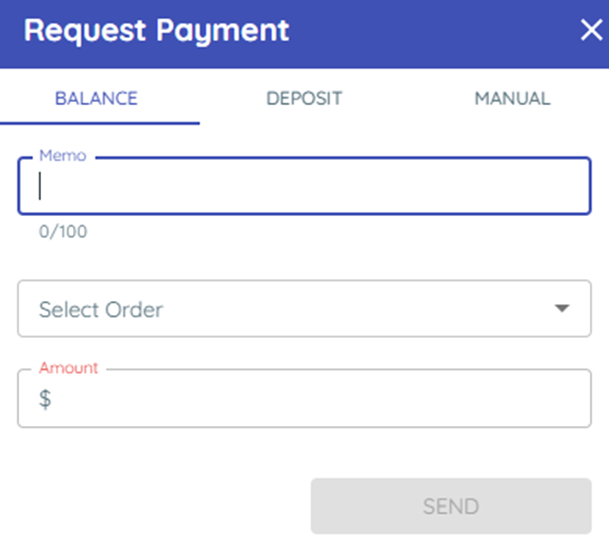
1) Click the dollar icon in Messenger (if enabled). Then choose the appropriate tab:
Balance: This allows you to select an open invoice, and request a payment for the entire amount due. When paid the amount is applied back to the correct invoice in Ideal/Infinity.
Deposit: This allows you to select an open invoice, and request a payment for a number other than the total amount due. When paid the amount is applied back to the correct invoice in Ideal/Infinity.
Manual: This allows you to request a payment that is not tied to an open invoice.
Note: Balance and Deposit require an open invoice that is tied to the same customer record your are texting.
Note: Manual payment requests are limited to $1,000 at most to reduce exposure to potential fraud. For amounts greater than $1,000, tie your request to an open invoice using Balance or Deposit.
2. Customer pays by link
1) The customer taps the link and completes payment on their phone.
You’ll see funds apply back to the invoice in Ideal or Infinity.
You still close/finalize the invoice in Ideal or Infinity as usual.
Manual Payment requests must be applied to the invoice manually.
> Support tip: Payment credentials are set by support in Settings > Payments (contact support via Chat).
Related KB articles